
Contents
Lead Attribution Intelligence for WordPress
AttribuLead Documentation
A complete manual for installing, configuring, and reading AttribuLead — for first-time users and administrators. Written against plugin version 0.44.0.
"Where did this lead really come from?"
01 Introduction
What AttribuLead does
AttribuLead is an attribution intelligence engine for WordPress. Its job is to answer one question for every lead in your CRM: where did this lead really come from? It watches the signals a visitor arrives with — ad click IDs, UTM parameters, referrers, AI-assistant referrals, and known campaign landing pages — classifies them into a fixed set of reporting channels, and preserves that origin on the visitor record even as the visitor returns later through a different (or no) source.
It is not a general analytics platform, a GA4 replacement, a UTM-collection plugin, or marketing automation software. It does one thing: identify and preserve lead origin, and make that origin explainable, so that "Direct" or "Unknown" stops being the largest row in your channel report.
What it records — and what it does not claim to know
AttribuLead records observable, technical signals present on a page request: query-string parameters, the HTTP referrer, a first-party visitor identifier, and (only if you opt in) form fields the visitor actually submitted. Every attribution decision is stored with a numeric confidence score and a plain-language reason, so nothing is a black box.
It does not de-anonymize visitors, identify a specific person from anonymous browsing behavior, fingerprint devices, resolve identity across devices, or enrich data from third-party sources. Anonymous-visitor sections of the product (see Dashboard) are explicitly labeled as observational and carry their own confidence language rather than being presented as fact.
AI referral detection is observable-only. AttribuLead can only report an AI-assistant referral when the assistant's client actually sends an HTTP Referer header pointing at a recognized AI domain. Many AI chat interfaces do not send one, so AI-driven traffic will sometimes still land in Direct or Unknown — this is a limitation of what a browser can observe, not a gap AttribuLead papers over with a guess.
Attribution versus analytics platforms
Analytics tools like GA4 are built to measure aggregate traffic and behavior. AttribuLead is built to identify and preserve the source of an individual lead and write that source onto the lead record itself, so it travels with the lead into your CRM. The two are complementary: keep your analytics platform for traffic and engagement measurement, and use AttribuLead as the system of record for "how did this specific person find us."
Key terminology
| Term | Meaning |
|---|---|
| Visitor | A browser recognized by a first-party visitor identifier (UUID). One visitor can have many sessions. |
| Session | A single visit; a new session starts after 30 minutes of inactivity on the same visitor. |
| Touchpoint | One session-level touch used for multi-touch analysis, built from a visitor's session history once they convert. |
| Lead | A conversion record created from a supported form submission. |
| Company | A grouping of leads by business email domain or submitted company name (see Companies). |
| Customer | A revenue record marked as a customer, used in Revenue and Revenue Attribution reporting. |
| Source / Medium / Campaign | The classic three-part description of where traffic came from (e.g. Google / cpc / spring-sale). |
| Lead Channel | A fixed, normalized reporting category (13 values) that AttribuLead maps every visitor onto for reporting — see Channels & Source Detection. |
| Attribution Method | How the source was identified — click_id, utm, campaign_asset, ai_referral, referrer, source_lock, or unknown. |
| Confidence | A 0–100 score reflecting how strong the attribution signal was. |
| First / Last / Effective | Three parallel views of a visitor's source — see Channels & Source Detection. |
02 Requirements, Installation & Account
WordPress / PHP requirements
- WordPress 6.0 or later
- PHP 7.4 or later
- License: GPL-2.0-or-later
Install and activate
- Upload the plugin. In wp-admin go to Plugins → Add New → Upload Plugin, choose the AttribuLead ZIP, and click Install Now.
- Activate. Click Activate Plugin. AttribuLead creates its database tables and seeds default settings on first activation only — reactivating later never resets a site you've already configured.
- Open the AttribuLead menu. A new admin-menu item appears with Dashboard, Leads, Channels, Companies, Export, Journey Insights, Revenue, Revenue Attribution, Attribution Models, CRM, Sync Center, Settings, Advanced, and Account.
License / account state
The Account screen shows your current plan, license status, license key (masked to its last four characters), expiration, activation count, and the account email on file. From here you can activate a license key, deactivate the current activation, or manually check license status.
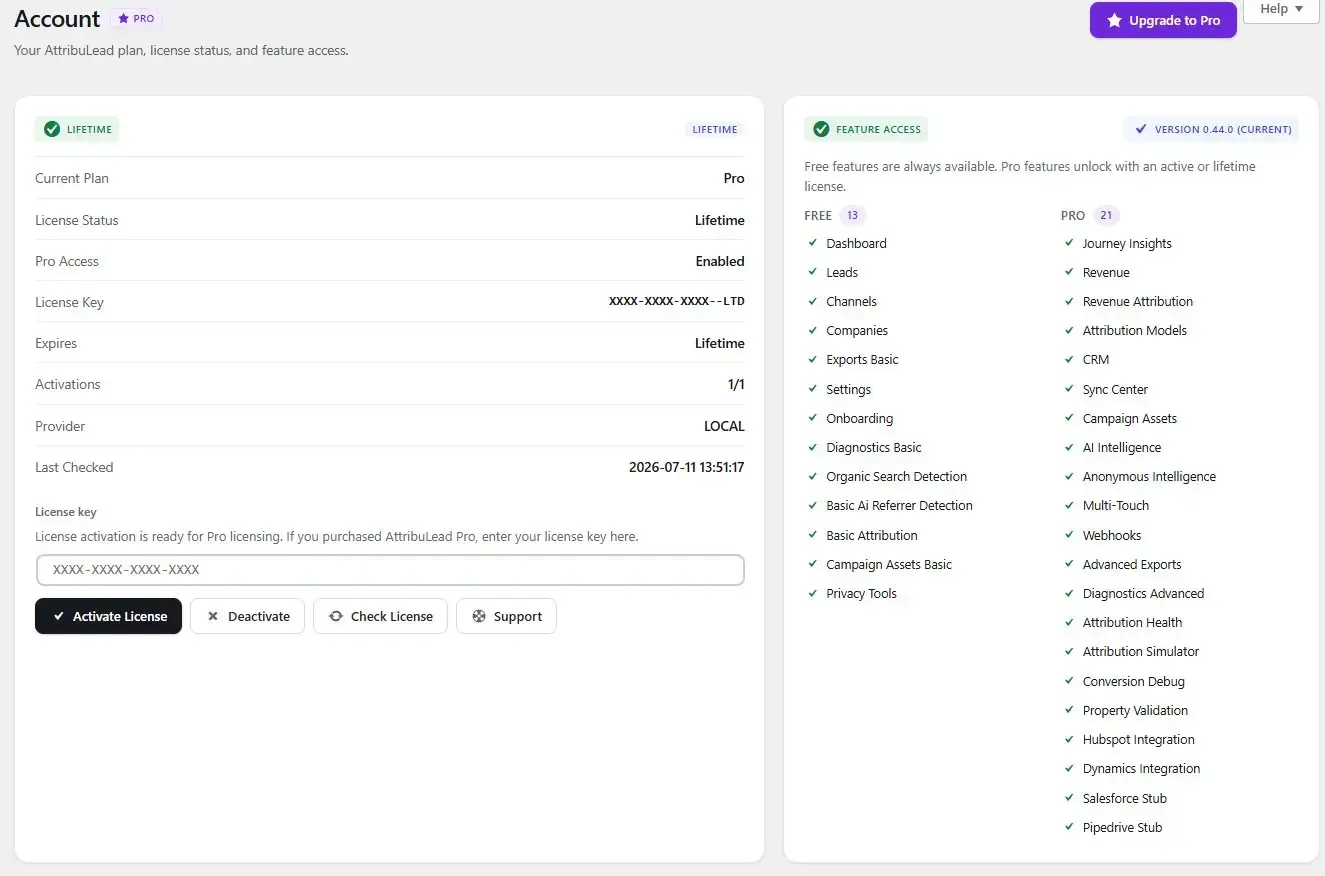
Free features remain available regardless of license state (dashboard, leads, channels, companies, basic exports, settings, onboarding, basic diagnostics, organic-search detection, basic AI-referrer detection, basic attribution, basic campaign assets, and privacy tools). Journey Insights, Revenue, Revenue Attribution, Attribution Models, CRM, Sync Center, advanced campaign assets, AI/anonymous intelligence, multi-touch reporting, webhooks, advanced exports, advanced diagnostics, Attribution Health, the Attribution Simulator, Conversion Debug, property validation, and the HubSpot/Dynamics CRM integrations require Pro access. If your plan lapses, previously collected data is preserved — you simply lose access to view and use the Pro-only screens until you renew.
The Account screen also shows update availability (current vs. latest version) — AttribuLead surfaces this information only; it does not install updates automatically.
Initial validation and onboarding
A Getting Started checklist tracks five milestones automatically from your live data, with no separate "mark as done" step:
- Verify tracking — complete once any visitor has been recorded.
- Create your first Campaign Asset — complete once at least one active Campaign Asset exists.
- Submit a test lead — complete once any conversion exists (a real submission or a Conversion Debug test send).
- Review your dashboard — complete once both visitors and conversions exist.
- Configure attribution settings — complete once the Settings screen has been saved at least once.
Use the Attribution Health screen after these steps to confirm the REST endpoint is reachable and the tracker is recording correctly.
03 Quick Start
This walkthrough gets you from a fresh install to a confirmed, correctly attributed test lead.
- Confirm tracking mode. In Settings → General, leave Consent & Tracking Mode on
Essential(the default) unless you have a specific consent requirement — Essential tracks unconditionally and stores no personal data, only source information. - Choose your privacy and Lead Intelligence posture. In Settings → Lead Intelligence, decide whether to store any submitted lead PII (email/name/company) or leave it Disabled (the default, attribution-only). This decision affects the Leads, Companies, and Export screens — see Settings → Lead Intelligence.
- Connect a supported form. Gravity Forms and Contact Form 7 are detected automatically once active; embed a HubSpot form as usual and AttribuLead's client-side script will populate its hidden fields. See Form Integrations.
- Apply UTMs or a Campaign Asset. Either tag a test link with
utm_source/utm_medium/utm_campaign, or create a Campaign Asset that matches a known landing page pattern — see Campaign Assets. - Generate a real test visit and conversion. Open your tagged URL in a private/incognito window (to get a fresh visitor identifier), browse to the page with your form, and submit it with test data.
- Confirm visitor, lead, channel, and confidence data. Go to Leads and find your test submission; open the lead detail page and confirm the Lead Channel, Effective Source, and Confidence match what you'd expect from the UTM or Campaign Asset you used.
Prefer not to wait on real form plumbing while testing? Use Advanced → Conversion Debug → Send Test Conversion instead. It inserts a conversion for your most recently tracked visitor through the same code path production forms use, tagged form_type = diagnostic_test so it never pollutes your real reporting or Recent Leads list. See Advanced Tools.
04 Dashboard
The Dashboard is the day-to-day overview: how much traffic you're getting, how much of it is converting, and how much of it AttribuLead has successfully identified.
Date ranges and comparison
Presets: Today, Last 7 Days, Last 30 Days (default), Last 90 Days, This Month, Last Month, and All Time, plus a custom From/To range. Trend arrows on KPI cards only appear when a specific window is selected (not All Time) and compare against the immediately preceding period of equal length.
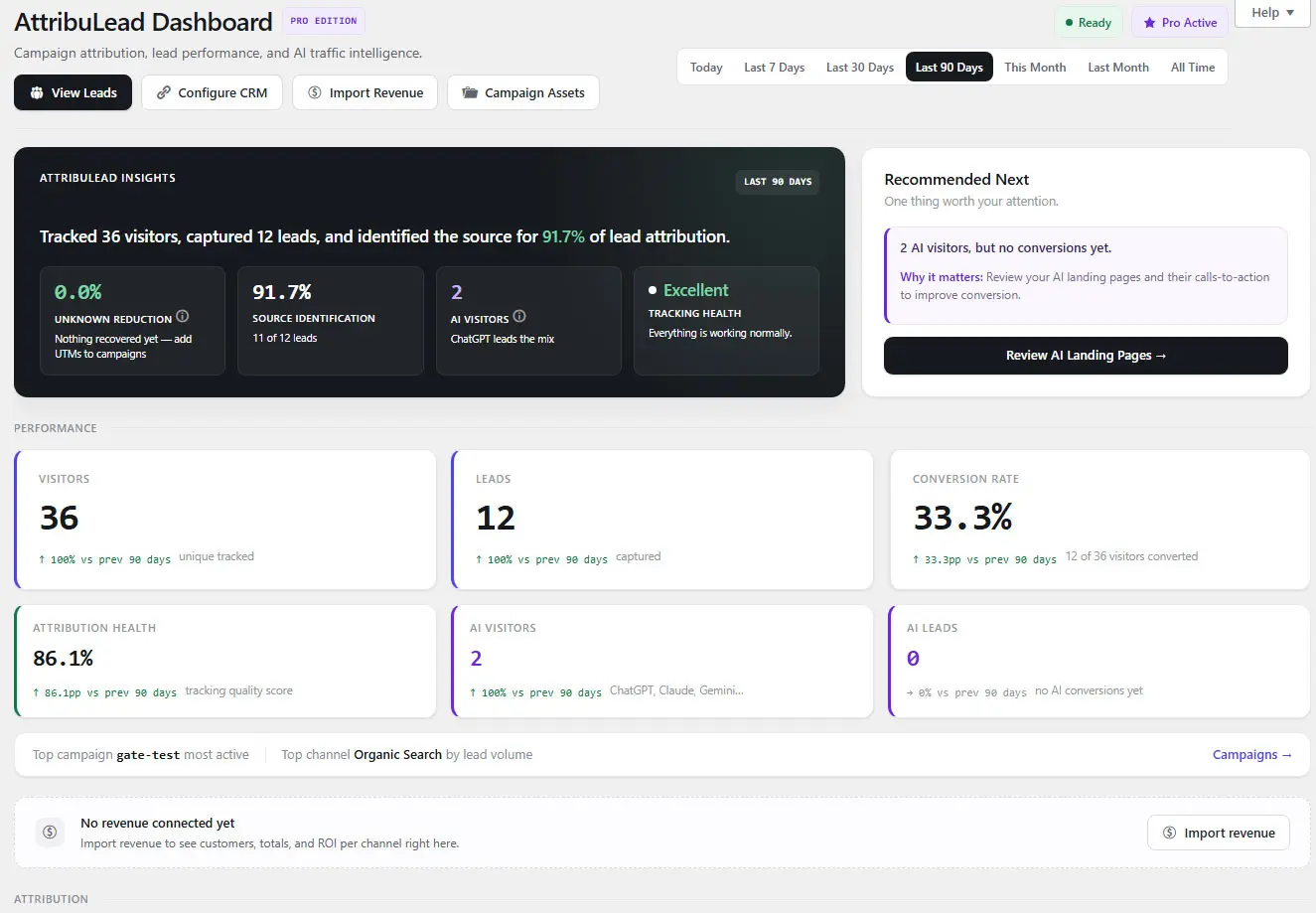
Visitors, leads, conversion rate, attribution health, AI visitors/leads
Two KPI tiers: Tier 1 covers Visitors, Leads, and Conversion Rate; Tier 2 covers Attribution Health (the share of visitors classified at high confidence), AI Visitors, and AI Leads. A Tracking Health indicator summarizes overall setup state as Excellent, Good, or Attention Needed based on whether traffic is flowing and how much of it is high-confidence.
Recommended Next and tracking status
A single "Recommended Next" card surfaces the most relevant next action from an ordered checklist — for example, prompting you to create a Campaign Asset if unknown-visitor share is high, or pointing at Settings if Lead Intelligence is still disabled and you have converting traffic. A companion setup strip tracks four basic readiness checks (traffic present, a lead recorded, attribution data present, settings saved at least once) independently from Pro-only readiness checks (CRM configured, revenue rows present, multi-touch data present) — the Pro checks never block the "Ready" state.
Attribution Recovery
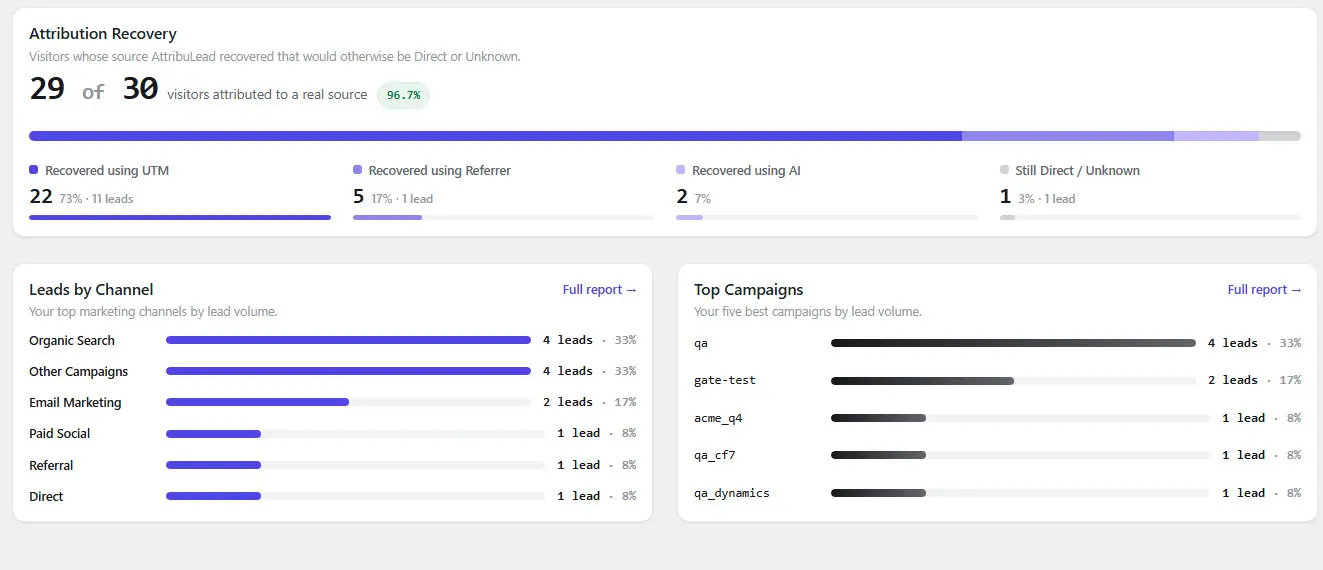
Leads by Channel shows your top six Lead Channels by lead volume with a link through to the full Channels report; Top Campaigns shows your top five campaigns by lead volume, then conversion rate. Top Landing Pages only renders once at least 10 total visitors have landing-page data, to avoid a noisy chart on a low-traffic site.
AI and anonymous visitor intelligence
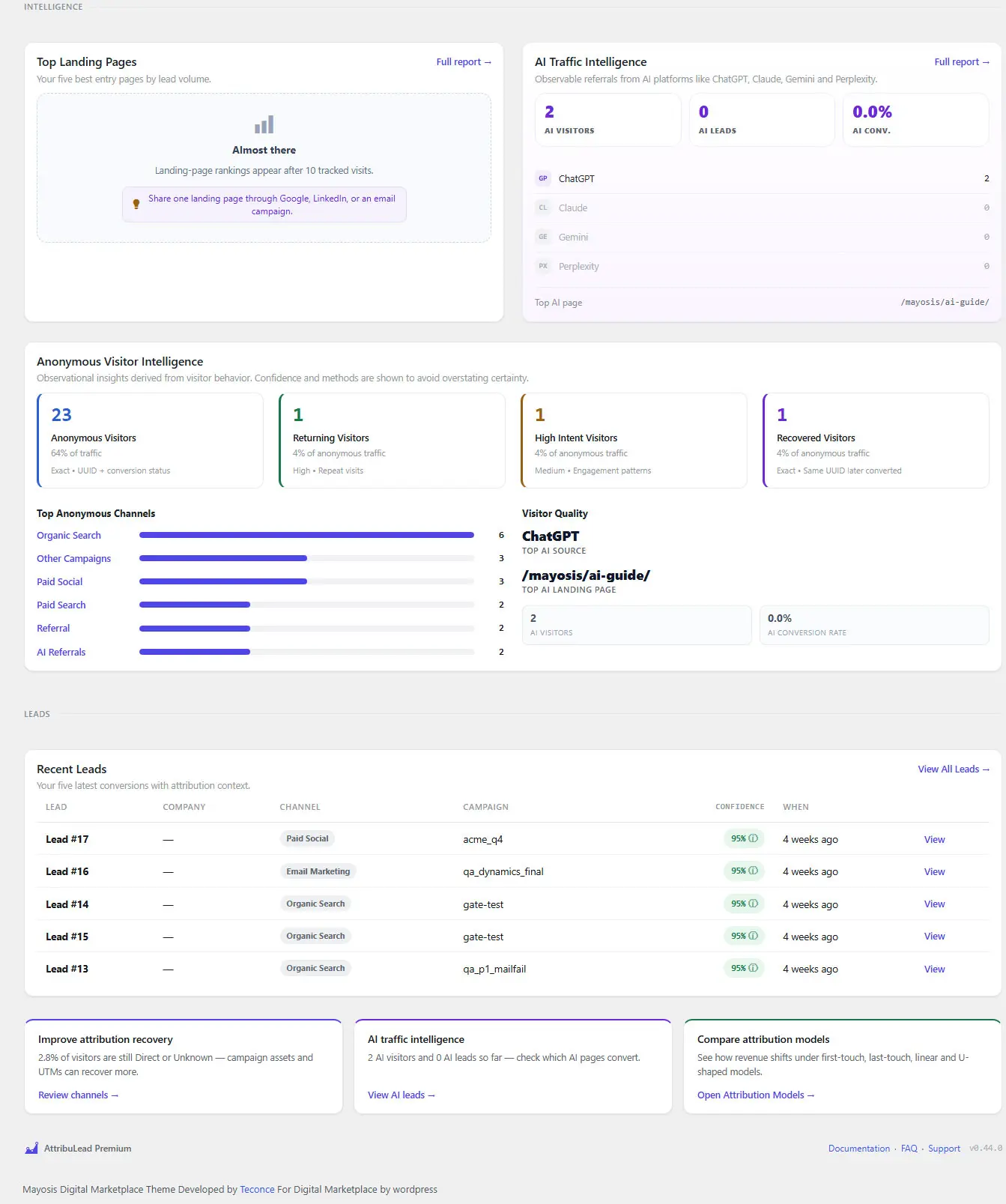
AI Traffic Intelligence reports AI visitors, AI leads, AI conversion rate, a fixed set of four platform tiles (ChatGPT, Claude, Gemini, Perplexity), and the top AI-referred landing page.
Anonymous Visitor Intelligence reports four cards, each carrying an explicit confidence label rather than a claim of certainty: Anonymous Visitors (exact count, never converted), Returning Visitors (2+ visits, labeled "High" confidence), High Intent Visitors (2+ visits, or 3+ pages, or a landing/last page containing "pricing," "demo," or "contact" — labeled "Medium" confidence), and Recovered Visitors (same visitor UUID converted after 2+ visits, labeled "Exact"). This section is explicitly documented as observational: "Observational insights derived from visitor behavior. Confidence and methods are shown to avoid overstating certainty."
Recent Leads and opportunity cards
The five most recent conversions, with Lead, Company, Channel, Campaign, Confidence (with a tooltip explaining the band and reason), relative time, and a link to the lead detail page. Diagnostic test conversions are excluded from this list by default.
05 Leads & Lead Details
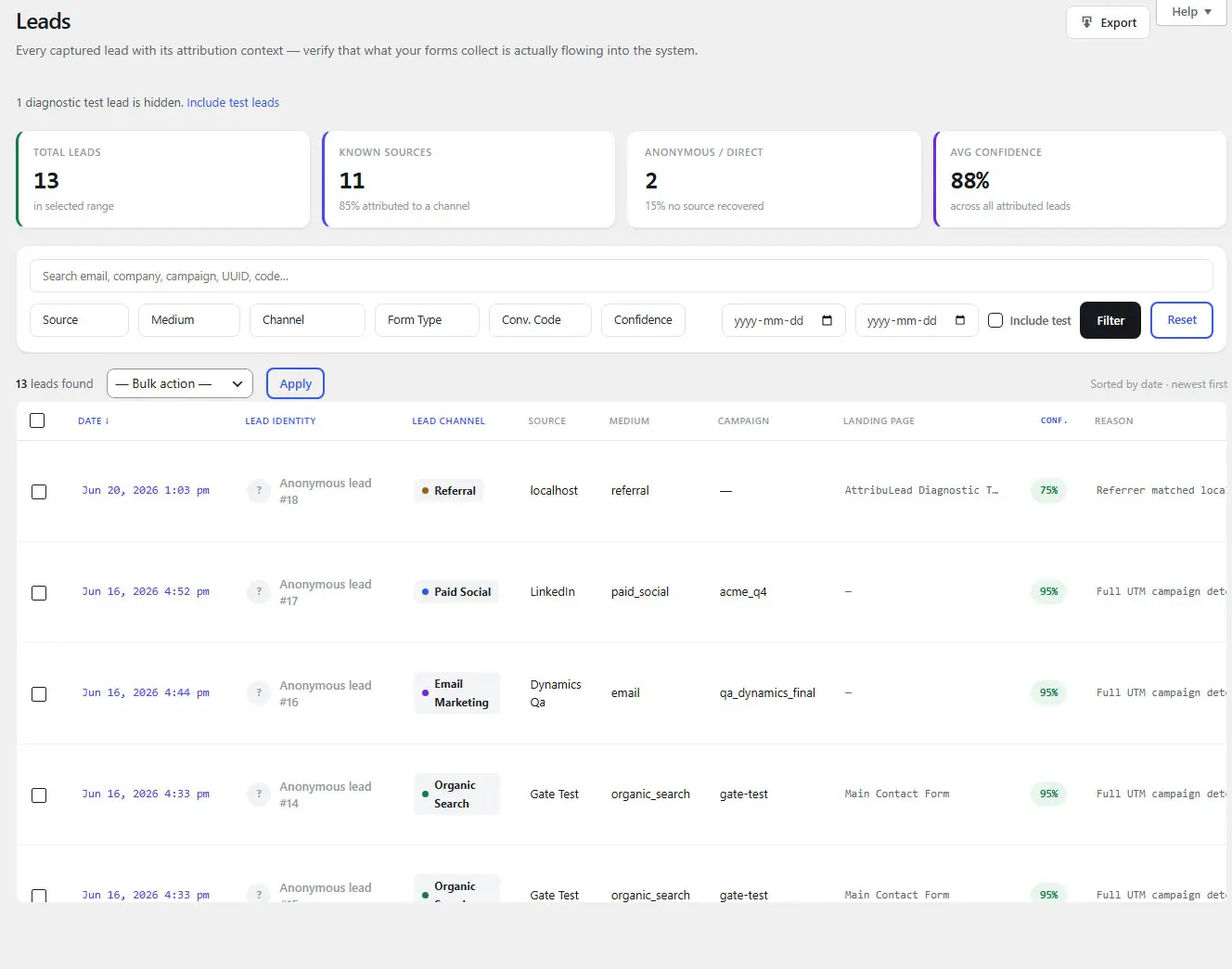
Filters, columns, confidence, attribution method, company, campaign
Available filters: free-text search (matches email, company, campaign, visitor UUID, or conversion code), Source, Medium, Channel, Form Type, Conversion Code, Confidence band, date range, and an "Include test" toggle for diagnostic submissions (hidden by default). Columns are sortable by date, company, channel, and confidence.
The Confidence filter groups leads as High (≥75), Medium (40–74), or Low (<40), while the color-coded confidence badge shown per row uses a different split — High (≥90), Medium (70–89), Low (<70) — against the same underlying 0–100 score. Use the numeric score on the lead detail page as the source of truth if the filter and badge appear to disagree.
Attribution method is one of seven values, derived from the confidence score at the moment of conversion: click_id, utm, campaign_asset, ai_referral, referrer, source_lock, or unknown.
Lead detail and journey/touchpoint context
Each lead detail page includes: header actions (View Visitor Journey, View Company, Send to CRM, Anonymize, Delete); an attribution summary (Lead Channel, Effective Source/Medium, Campaign, Confidence and Method); an Attribution Explanation card with a four-item checklist (UTM campaign, Click ID, Referrer, AI detection) showing which signal actually classified the visit; Lead Info (email/name/company/form type/conversion code/visitor UUID, subject to Lead Intelligence visibility rules below); Effective Source detail (source, medium, campaign, term, content, reason, and method — described in-product as "what gets sent to your CRM. May preserve the original campaign even if the latest visit was direct"); an Attribution Timeline comparing First Touch and Last Touch, including a "Source Lock preserved" indicator when the last visit was a direct return; a CRM Snapshot (provider, auto-sync status, last sync result, remote record ID, and the live field mapping); a CRM Lifecycle panel if a matching revenue record exists (lifecycle stage, customer status, revenue, opportunity name); an Attribution Journey list of multi-touch touchpoints; a chronological Journey Timeline narrative; and a collapsed Raw Data panel that explicitly notes some fields — such as click IDs and user agent — are not stored by the current tracking schema and therefore cannot be shown even in raw form.
PII visibility as governed by Lead Intelligence / privacy settings
What appears in the Lead Identity area is controlled entirely by the Lead Data Storage setting (see Settings → Lead Intelligence): name only shows if the mode is Email + Name or Email + Name + Company; email shows for any mode above Disabled; company only shows in Email + Name + Company mode. When Lead Intelligence is Disabled, leads are shown by ID only, with a banner explaining why no identity fields are visible.
Bulk actions on the list are Delete (hard-deletes the conversion row; if it was the visitor's only conversion, also clears their converted status) and Anonymize (clears the same PII columns as the Privacy tool's PII-only mode and marks the record as anonymized while keeping attribution data intact). Both actions are logged without storing the PII itself.
06 Channels & Source Detection
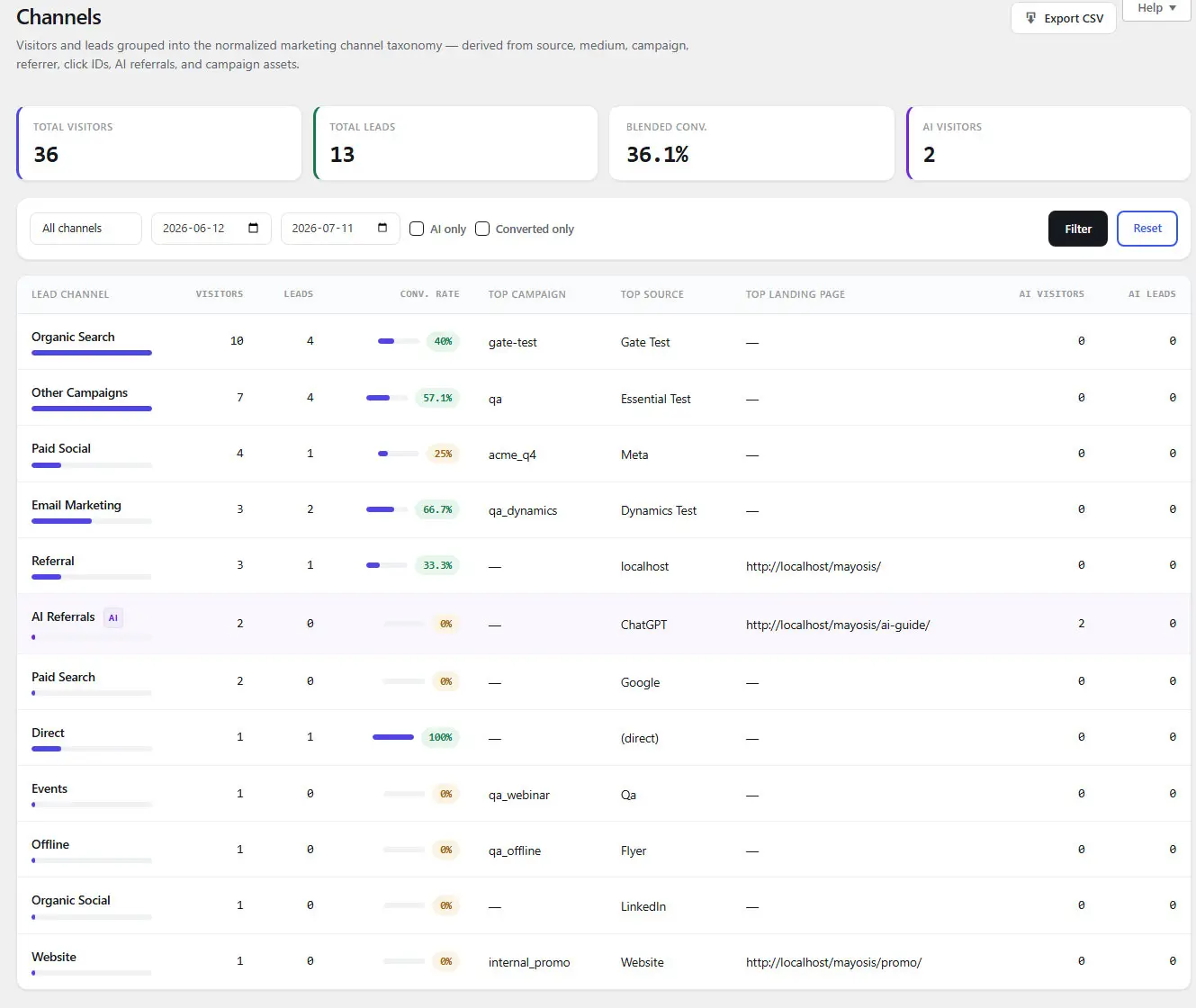
Normalized Lead Channels and classification signals
AttribuLead reports on 13 fixed channels rather than raw source/medium combinations. Classification draws on source, medium, campaign, referrer, ad click IDs, AI referrals, and Campaign Assets — evaluated in a fixed priority order (below), never a best guess.
| # | Lead Channel | Typical trigger |
|---|---|---|
| 1 | Paid Search | A search-ads click ID (gclid, msclkid) or a paid-search medium/source combination. |
| 2 | Paid Social | A social-ads click ID (fbclid, li_fat_id, ttclid) or a paid-social medium/source combination. |
| 3 | Email Marketing | UTM medium/source indicating email. |
| 4 | Events | UTM medium/source indicating an event or webinar. |
| 5 | Organic Search | A referrer from a recognized search engine, with no paid signal. |
| 6 | Organic Social | A referrer from a recognized social network, with no paid signal. |
| 7 | AI Referrals | An observable referrer from a recognized AI assistant domain. |
| 8 | Offline | UTM medium/source indicating an offline channel (e.g. a QR code or print campaign). |
| 9 | Website | Same-domain navigation combined with a campaign or Campaign Asset match — plain internal navigation alone never qualifies. |
| 10 | Direct | No source, medium, campaign, or referrer, and no click ID or asset match. |
| 11 | Referral | A recognized referring domain that isn't search, social, or AI. |
| 12 | Other Campaigns | A UTM campaign present but not matching any of the above mediums. |
| 13 | Unknown | No usable signal could be classified. |
The Lead Channel is a reporting-layer classification applied on top of the underlying attribution decision — it never re-derives source, medium, campaign, or confidence itself.
UTMs, click IDs, referrers, precedence, source lock, confidence
When a visit arrives, the attribution engine evaluates signals in this order, and the first match wins:
- Ad click ID —
gclid,msclkid,fbclid,li_fat_id, orttclidpresent in the URL. Confidence 100. - UTM parameters —
utm_sourcepresent (with or withoututm_campaign). A UTM match is used outright and does not fall through to referrer checks even if a referrer is also present. Confidence 95 with a campaign, 80 without. - Referrer classification (only evaluated if no UTM was present), checked in this sub-order: AI-assistant referrer (confidence 65) → recognized search-engine referrer (confidence 55) → recognized social-network referrer (confidence 50) → Campaign Asset match against the landing page (confidence 85) → any other recognized referring domain (confidence 75).
- Campaign Asset match against the landing page, evaluated even with no referrer at all, as a final fallback before Direct. Confidence 85.
- Direct / Unknown — no usable signal. Confidence 10 on a true first-time direct visit.
AI-assistant detection is checked ahead of search-engine detection specifically so that AI tools hosted on a search engine's own domain (for example a Gemini subdomain of google.com) are correctly recognized as AI rather than organic search.
First Touch, Last Touch, and Effective Source
Every visitor carries three parallel views of their source:
- First Touch — the original source, written once and never overwritten.
- Last Touch — the most recent signal observed, which can legitimately be "Direct" if the visitor returns by typing your URL or using a bookmark.
- Effective Source — the business attribution value used for CRM fields, lead reporting, and funnel reporting, governed by Source Lock.
Source Lock
Source Lock protects the Effective Source from being silently overwritten by a low-signal return visit. Configured in Settings → General with three policies:
| Policy | Behavior |
|---|---|
| Forever (default, recommended) | The first known effective source is kept permanently once established. |
| Time Window | The lock expires after a configurable number of days (default 90) measured from the visitor's first-seen date; after that, a new touch's source is allowed through. |
| Always Overwrite | The latest known source always replaces the previous one. Not recommended for typical B2B sales cycles. |
Under every policy, a genuinely direct return (no referrer, no UTMs) never overwrites a known effective source. When this happens, the Last Touch confidence is deliberately downgraded to 25 with the reason "Direct return detected. Original source preserved by Source Lock" — the source itself stays intact, only its confidence reflects that no new signal arrived.
Confidence scoring
| Signal | Confidence |
|---|---|
| Ad click ID | 100 |
| Full UTM (source + campaign) | 95 |
| Campaign Asset match | 85 |
| Partial UTM (source only) | 80 |
| Known referral (not search/social/AI) | 75 |
| Observable AI referral | 65 |
| Organic search | 55 |
| Organic social | 50 |
| Direct return (Source Lock preserved) | 25 |
| Unknown / true direct | 10 |
Every attribution decision pairs its score with a written reason (for example, "Referrer matched linkedin.com. No UTM parameters detected. No ad click IDs detected.") so a marketer never has to guess why a lead landed where it did.
07 Companies
The Companies report is built entirely from data a lead actually submitted through a form — a company name or a business email domain. It performs no fingerprinting, no cross-device resolution, and no third-party enrichment. Free consumer email domains (Gmail, Yahoo, Outlook, iCloud, and similar) are excluded from domain-based grouping so a shared Gmail address doesn't create a fake "company."
Companies only populate when Lead Intelligence is set to Email + Name + Company in Settings. In any other mode the page shows an empty state explaining that company data appears only once a form submission actually includes a company name or business email.
Company list, domain grouping, conversion/revenue rollups
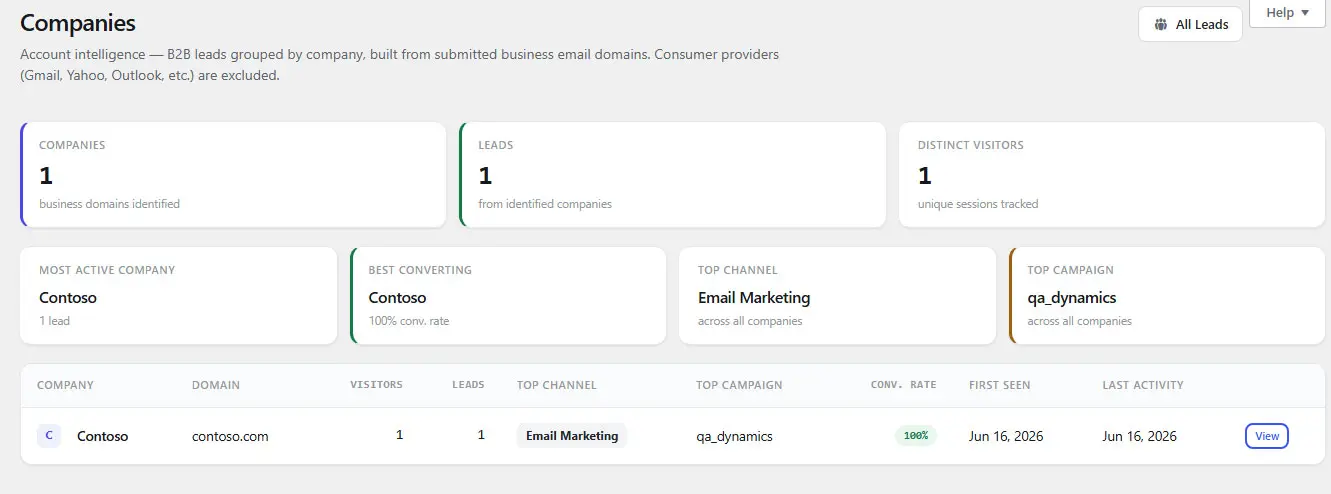
Companies are grouped by business email domain, falling back to the submitted company name when no domain is present. List columns: Company, Domain, Visitors, Leads, Top Channel, Top Campaign, Conversion Rate, First Seen, Last Activity.
Company detail
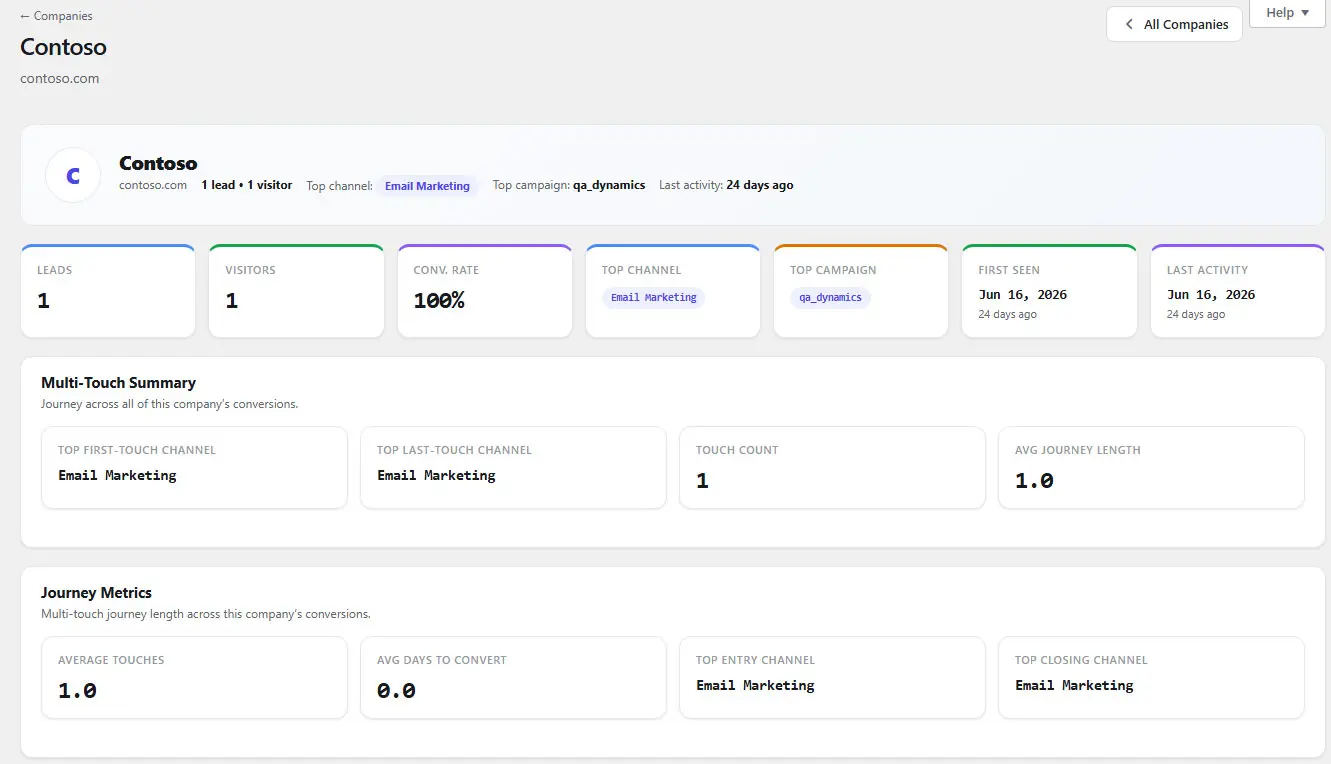
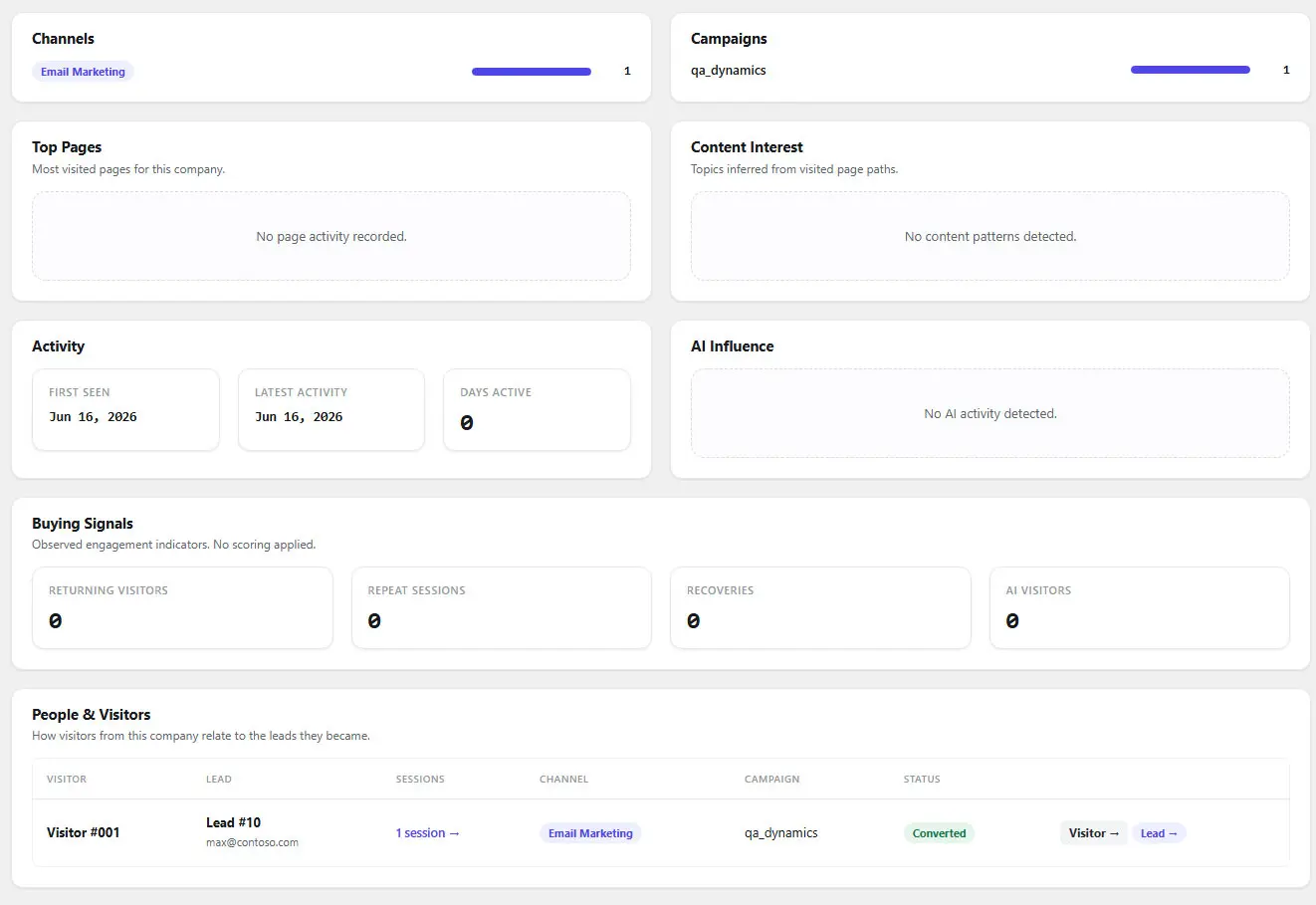
Company detail sections include Revenue Summary, Multi-Touch Summary, Journey Metrics, Channels, Campaigns, Top Pages, Content Interest (topics inferred from visited URL paths), Activity, AI Influence, Buying Signals, and a People & Visitors table of recent visitors tied to the company.
08 Campaign Assets
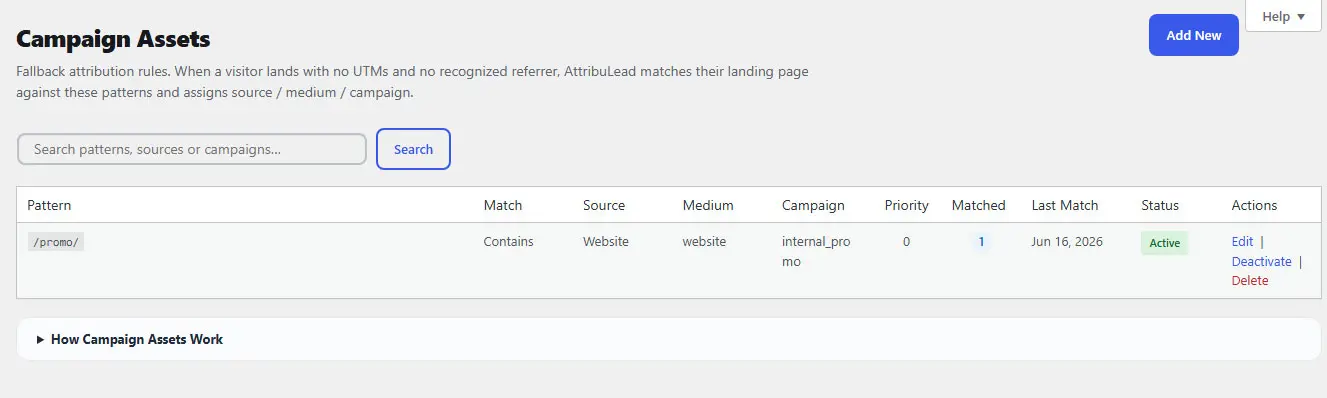
Purpose and when to use them
Campaign Assets map a known landing-page URL pattern to a source, medium, and campaign — useful when a link genuinely cannot carry UTM parameters (a QR code, a printed URL, a partner's own tracked redirect). They are explicitly a fallback signal, not a primary one: they only fire after click ID, UTM, and recognized-referrer checks have all failed to classify the visit.
Fields
| Field | Required | Notes |
|---|---|---|
| Pattern | Yes | The URL text to match against the landing page. Max 255 characters. |
| Match Type | — | exact, contains (default), or starts_with. |
| Source | Yes | Normalized through the same source map as UTMs (e.g. "google" → Google). Max 100 characters. |
| Medium | No | Falls back to "referral" if left blank. Max 100 characters. |
| Campaign | No | Max 191 characters. |
| Priority | — | Integer; higher values are evaluated first. |
| Status | — | Active/Inactive. Inactive rules are never evaluated. |
Add/edit workflow
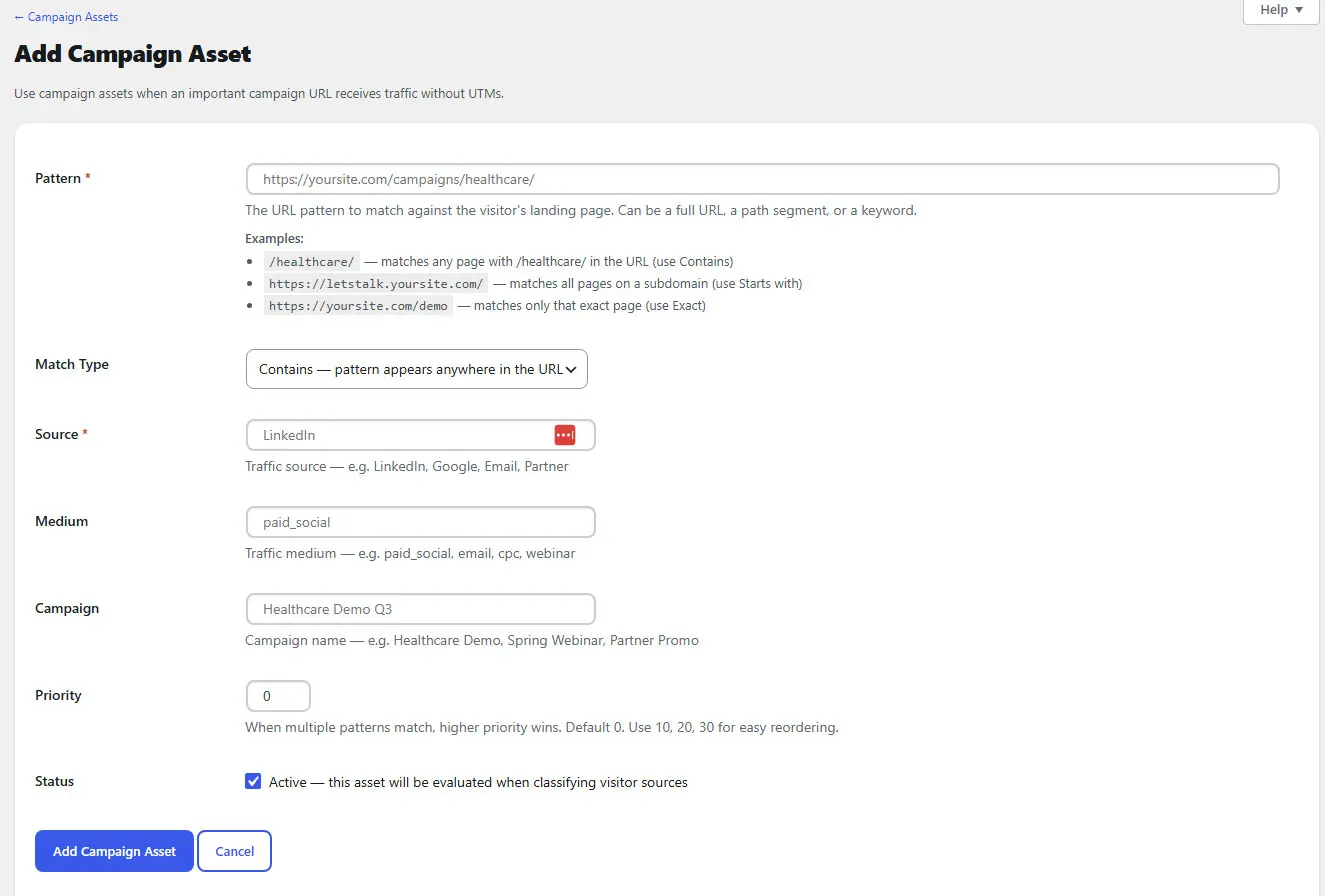
- Choose Match Type based on how precise you need to be:
exactfor a single known URL,containsfor any URL containing a substring (e.g./promo/),starts_withfor a URL prefix. - Enter Pattern and Source. Both are required — the form will not save without them.
- Set Priority if you expect this rule to overlap with another. Higher priority wins.
- Save and test with the Attribution Simulator (see Advanced Tools) before relying on it in production.
Collisions, precedence, and safe examples
When more than one active rule could match the same URL, AttribuLead evaluates rules by priority (highest first), then by creation order (oldest first) as a tiebreaker, and stops at the first match — there is no separate "conflict" warning, so keep patterns as specific as practical and use Priority deliberately when two rules could legitimately overlap.
Safe pattern examples: /webinar-2026/ (contains) for a printed event URL; https://example.com/qr/booth12 (exact) for a single QR code; /partners/ (starts_with) for an entire partner-referral section of your site.
09 Settings
Settings are organized into five tabs. General, Advanced, and Integrations share one form and Save button; Lead Intelligence's retention control and the Privacy & Compliance deletion tool each submit independently.
General
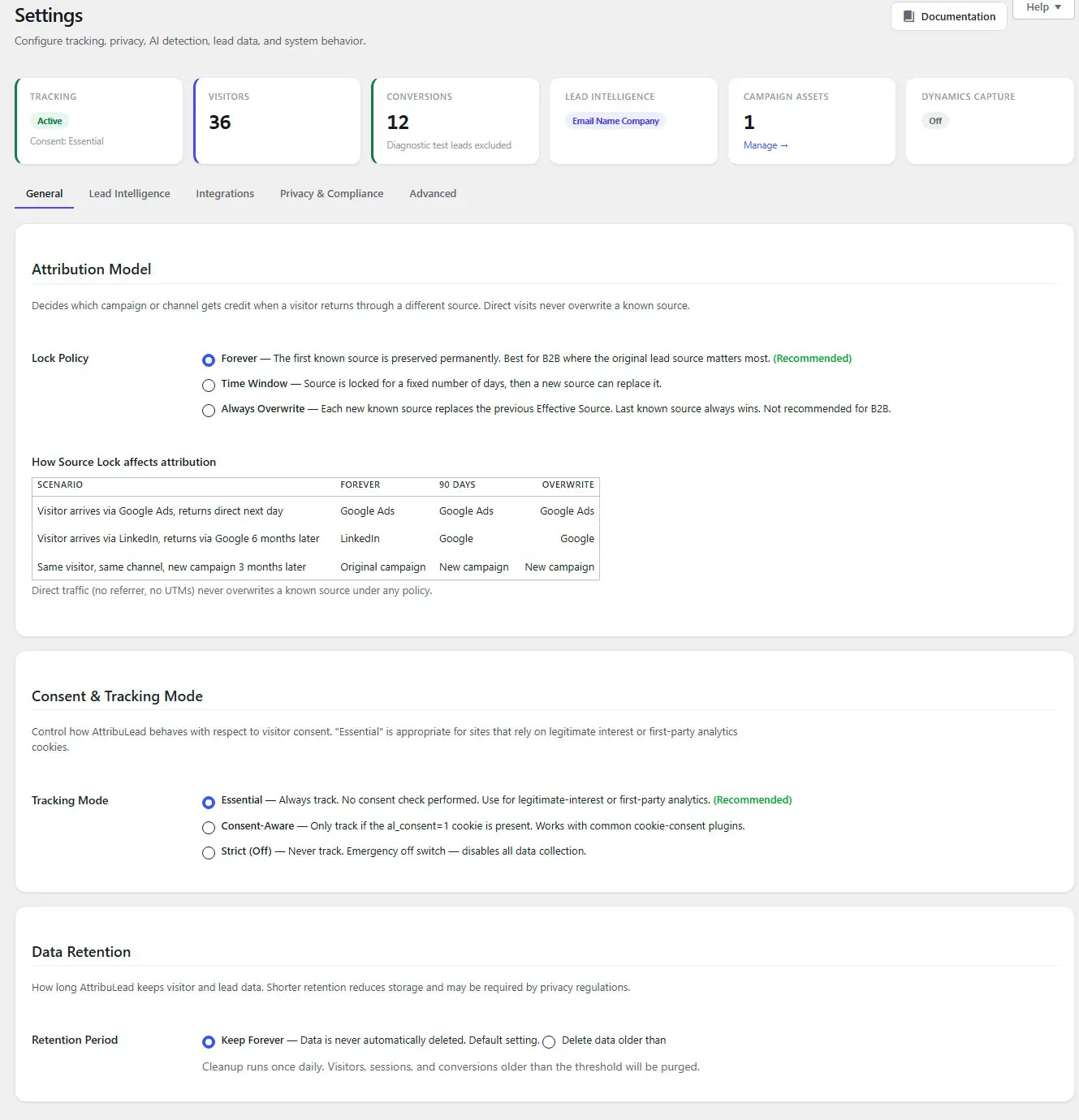
- Attribution Model (Source Lock) —
Forever(default, recommended),Time Window(30/60/90-day presets or a custom 1–3650 day value), orAlways Overwrite. A worked comparison table on this tab illustrates the outcome of each policy side by side. See Channels & Source Detection for the underlying rule. - Consent & Tracking Mode —
Essential(default, recommended: always track, no consent check),Consent Aware(track only if theal_consent=1cookie is present),Strict(never track — an emergency off switch). - Data Retention —
Forever(default) orCustomwith 90/180/365-day presets or a custom 1–3650 day value. A daily cleanup job purges visitors, sessions, and conversions older than the configured threshold once this is set.
Lead Intelligence
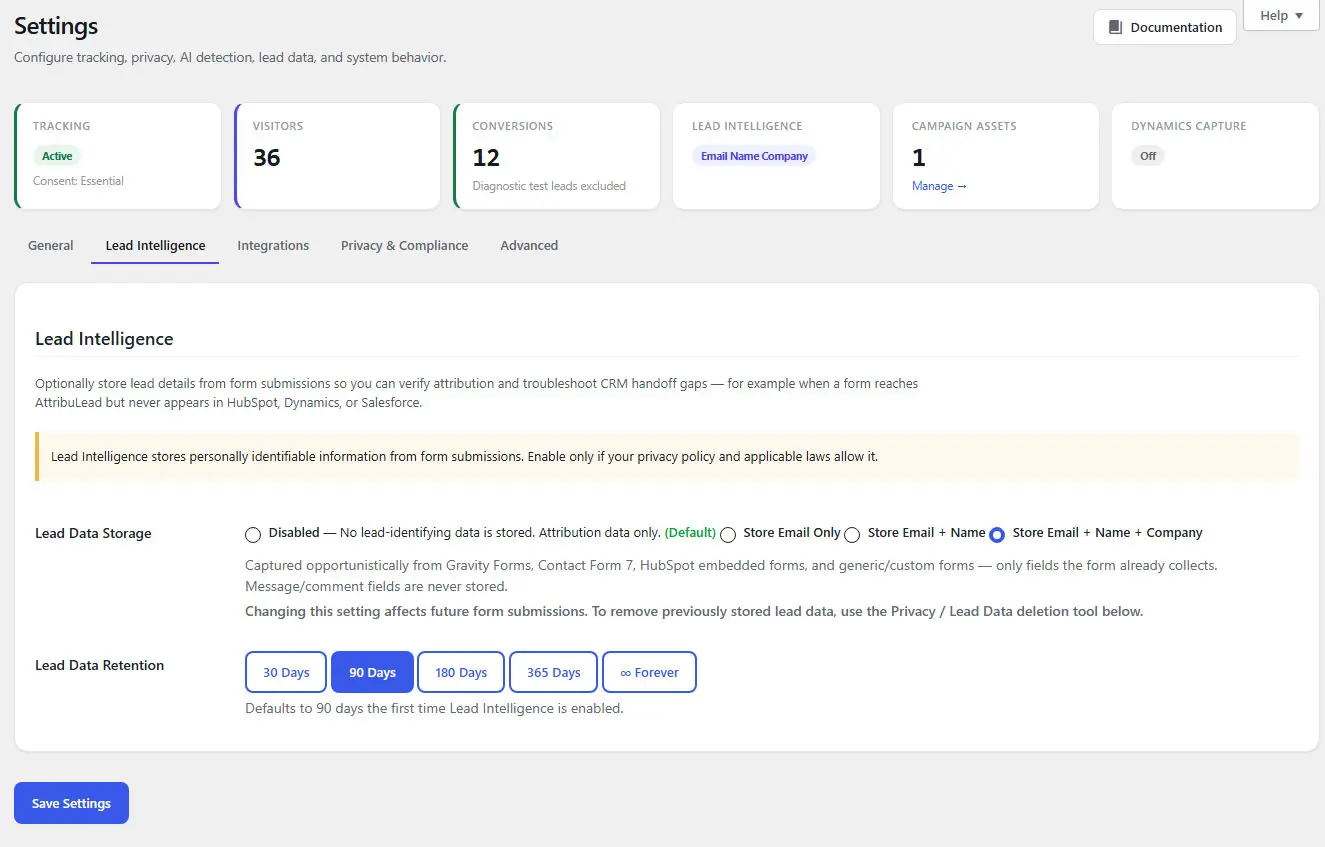
Verbatim warning shown on this tab: "Lead Intelligence stores personally identifiable information from form submissions. Enable only if your privacy policy and applicable laws allow it."
- Disabled (default) — no lead-identifying data is stored; attribution data only.
- Email Only — stores the submitted email address.
- Email + Name — additionally stores first, last, and full name.
- Email + Name + Company — additionally stores company name and business email domain; this is the only mode that populates the Companies report.
Only fields the form itself already collects are captured — message and comment fields are never stored — and business email domains never include free consumer providers (Gmail, Yahoo, Outlook, iCloud, and similar). Changing this setting affects future submissions only; use the Privacy & Compliance deletion tool to remove previously stored lead data.
Lead Data Retention is set independently via preset buttons (30 / 90 / 180 / 365 days, or Forever). The first time Lead Intelligence is turned on from Disabled with no explicit retention chosen, it defaults to 90 days rather than Forever.
Integrations
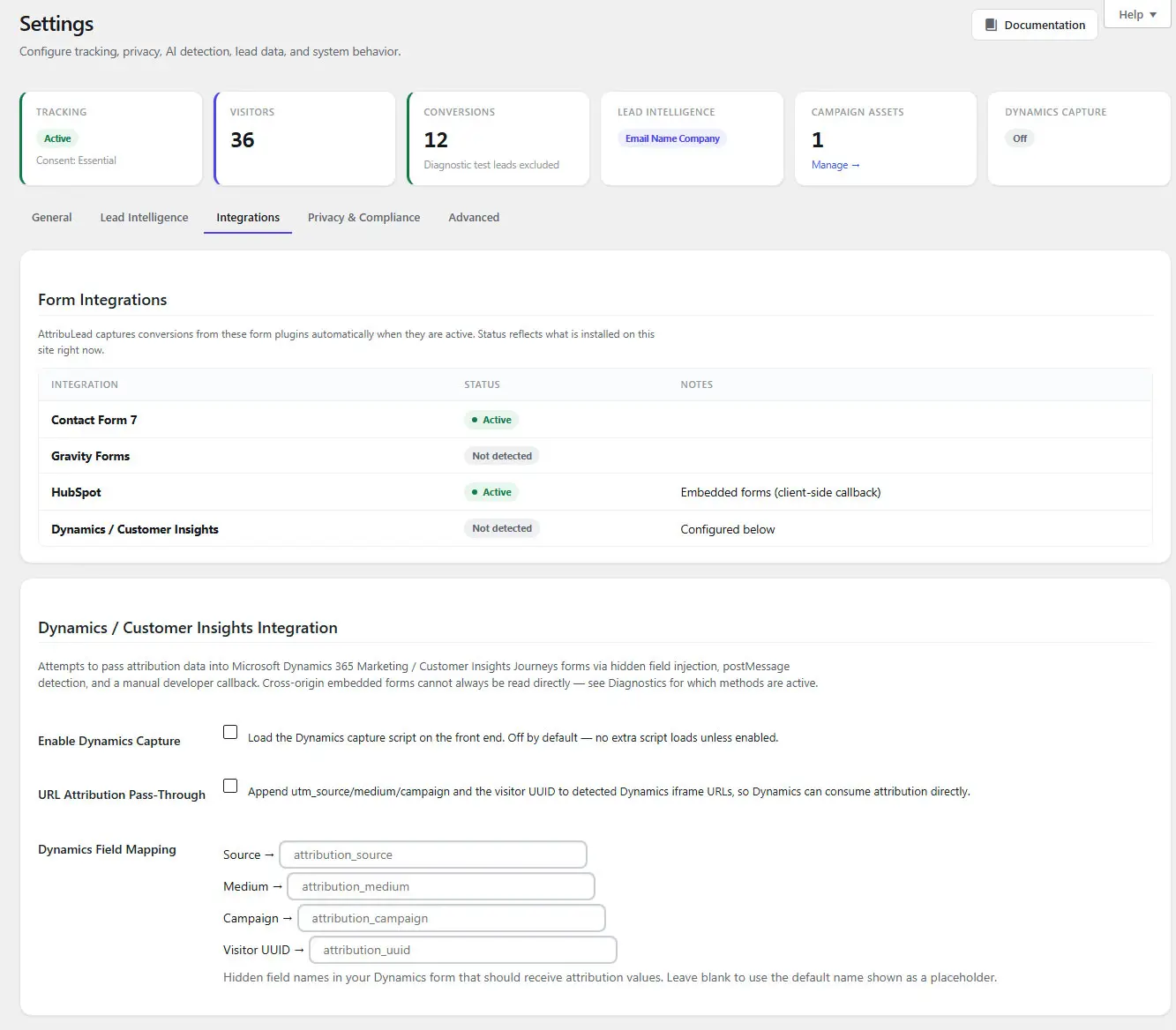
A read-only status table reports Contact Form 7 (active once CF7 itself is installed and active), Gravity Forms (active once Gravity Forms is installed and active), HubSpot (always shown active — it works client-side against embedded forms with no separate toggle), and Dynamics/Customer Insights (active only once explicitly enabled below).
- Load Dynamics capture script — off by default; no extra script loads on your front end unless enabled.
- URL passthrough — off by default; when enabled, appends UTM parameters and the visitor UUID to detected Dynamics-form iframe URLs.
- Field mapping — four hidden-field-name slots for source, medium, campaign, and visitor UUID, matched against the field names your embedded Dynamics form actually uses.
Privacy & Compliance
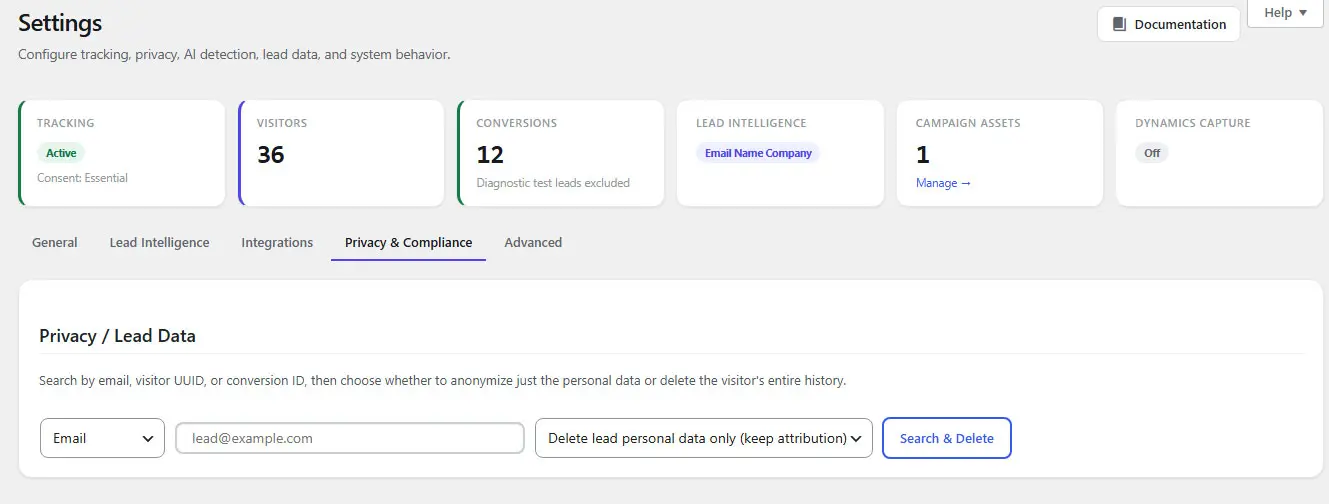
See Consent, Privacy & Data Lifecycle for the full deletion workflow, modes, and irreversibility warning.
Advanced
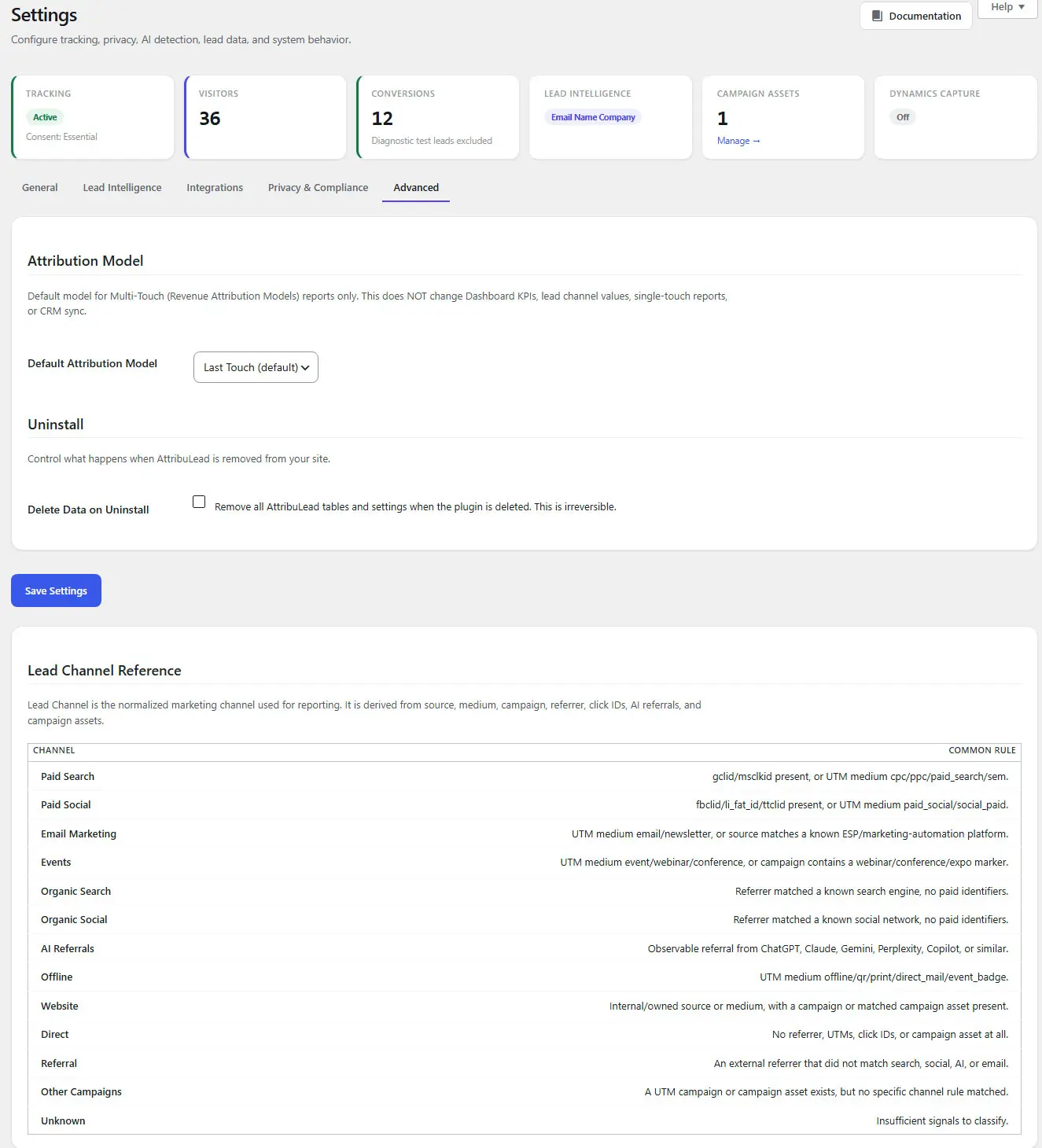
General → Attribution Model configures Source Lock (how the Effective Source is protected over time). Advanced → Default Attribution Model configures which multi-touch revenue model (First Touch, Last Touch, Linear, U-Shaped, or Time Decay) is used as the default view on the Attribution Models report. They share a heading but control unrelated things — don't confuse the two.
- Default Attribution Model — select: Last Touch (default), First Touch, Linear, U-Shaped, or Time Decay.
Scope — verbatim from the product
"Default model for Multi-Touch (Revenue Attribution Models) reports only. This does NOT change Dashboard KPIs, lead channel values, single-touch reports, or CRM sync."
- Delete Data on Uninstall — off by default. Label: "Remove all AttribuLead tables and settings when the plugin is deleted. This is irreversible." A red warning appears once checked: "Warning: all visitor, session, lead, and campaign asset data will be permanently deleted on uninstall."
Enabling Delete Data on Uninstall does nothing immediately, but the next time the plugin is deleted (not merely deactivated) from Plugins, all eight AttribuLead database tables and every AttribuLead option are permanently removed with no recovery path. Deactivating the plugin never deletes anything, regardless of this setting.
Lead Channel Reference
The Advanced tab also includes a permanent reference table listing all 13 Lead Channels and their classification rules — the same taxonomy documented in Channels & Source Detection — for quick lookup while configuring campaigns.
After saving General/Integrations/Advanced, spot-check with the Attribution Simulator or a real test visit that Source Lock and the default multi-touch model behave as expected. Because Lead Intelligence and Privacy & Compliance submit through separate forms, saving one does not save the other — confirm each tab independently if you're changing several settings in one session.
10 Consent, Privacy & Data Lifecycle
Consent modes
| Mode | Server-side behavior |
|---|---|
| Essential (default) | Always allowed. No personal data is collected in this mode — only source/attribution information. |
| Consent Aware | Allowed only when the al_consent=1 cookie is present, so it can be driven by your CMP or a custom consent banner. |
| Strict | Never allowed — an emergency off switch that stops tracking entirely, server-side and client-side. |
This is a single allow/deny gate rather than granular per-category consent (e.g. there is no separate "analytics" vs. "marketing" consent inside AttribuLead itself) — pair Consent Aware mode with your CMP's own consent cookie/category if you need finer control.
Data stored and locality
All data lives in your own WordPress database, in tables AttribuLead creates on activation. Nothing is sent to an external service as part of core attribution — the only outbound traffic is the CRM sync you explicitly configure (see CRM & Sync Center), and license/update checks against attribulead.com.
Anonymization / PII behavior
Attribution data (source, medium, campaign, confidence, channel) is always read from your visitor record — never from raw submitted form values — so it persists independently of whatever PII policy you choose. PII itself is opt-in and tiered, as described in Settings → Lead Intelligence: Disabled by default, escalating through Email, Email + Name, to Email + Name + Company.
Retention and deletion
Two independent retention controls exist:
- Data Retention (Settings → General) governs how long visitor, session, and conversion rows are kept overall — Forever by default, or a custom day count with a daily cleanup job.
- Lead Data Retention (Settings → Lead Intelligence) governs specifically how long the PII fields on a conversion are kept, independent of the attribution data itself.
The Privacy / Lead Data deletion tool
On Settings → Privacy & Compliance, search for a specific person or record by email, visitor UUID, or conversion ID, then choose a deletion mode:
| Mode | Effect |
|---|---|
| Delete lead personal data only (default) | Strips name, email, company, and related PII fields from matching conversions and marks them as anonymized, while keeping the attribution data (source, medium, campaign, channel) intact for reporting continuity. |
| Delete everything | Hard-deletes the visitor, all of their sessions, and all of their conversions. |
Both modes are confirmed with "This action cannot be undone. Continue?" before executing. Only the deletion's type, counts, and timestamp are logged afterward — never the personal data itself.
Delete Data on Uninstall
Covered fully in Settings → Advanced. In short: off by default, and it only takes effect when the plugin is deleted (not deactivated) from the Plugins screen. When enabled, uninstall removes all eight AttribuLead database tables, every AttribuLead-prefixed option, related transients, and the daily cleanup cron — permanently.
Practical GDPR/privacy implementation guidance
AttribuLead is not a lawyer and this is not legal advice. The following reflects what the plugin's settings can technically do to help meet common privacy obligations; whether it satisfies your specific legal requirements depends on your jurisdiction, industry, and how you use the plugin. Consult qualified counsel for your compliance program.
- Leave Lead Intelligence Disabled if you only need channel-level reporting and no PII at all.
- Use Consent Aware mode paired with your CMP if your consent framework requires tracking to be gated on an explicit opt-in.
- Use the Privacy & Compliance deletion tool to service data-subject deletion requests, choosing PII-only or full deletion depending on the request.
- Set a finite Data Retention and Lead Data Retention window if your policy requires automatic data minimization over time.
11 Form Integrations
Form integrations capture the visitor UUID and any opted-in lead fields at the moment of submission and create a conversion record — this is separate from, and upstream of, sending that lead onward to a CRM (see CRM & Sync Center).
Gravity Forms
Detected automatically when Gravity Forms is installed and active. AttribuLead hooks the form's after-submission event, locates the visitor UUID from a hidden field on the form, and creates a conversion. If no valid visitor UUID is found on the entry, no conversion is created. Opportunistic lead-field capture recognizes Gravity Forms' native Email and Name field types, and any field whose label or name contains "company" or "organization."
Contact Form 7
Detected automatically when Contact Form 7 is active. AttribuLead listens on every submit attempt (not only successful mail delivery) so a lead is still recorded if your SMTP fails to send the notification email — but only for submissions CF7 itself considers lead-worthy (mail sent or a mail-delivery failure); validation failures, missing-acceptance, spam-flagged, and aborted submissions never create a conversion. The visitor UUID and any lead fields are read from the posted form fields using the same field-name matching as the generic capture path below.
HubSpot Forms
Support for embedded HubSpot forms is entirely client-side — there is nothing to enable on the Integrations tab. AttribuLead's front-end script hooks into HubSpot's own form-rendering API to populate a set of hidden contact properties on the form before it's shown, and to send a conversion beacon once the visitor submits.
For this to work, create the corresponding hidden contact properties in HubSpot (visitor ID, first/last source, effective source/medium/campaign, confidence, and reason) and add them as hidden fields on each embedded form. This is separate from, and does not require, the native HubSpot CRM sync described in CRM & Sync Center → HubSpot.
Generic / Custom Forms
Any other HTML form can capture attribution by including AttribuLead's hidden fields directly (their names are configurable in Settings) and posting to AttribuLead's conversion endpoint the same way the HubSpot integration does — a lightweight, developer-facing path for forms outside the natively supported list. Lead-field capture uses the same candidate-name matching used elsewhere: common variants of email, first/last/full name, and company field names are recognized automatically; nothing is invented if a field isn't present.
Microsoft Dynamics / Customer Insights Form Capture
This is a distinct capability from syncing leads to Dynamics as a CRM (see CRM & Sync Center → Microsoft Dynamics 365). It's an inbound, client-side-only capture layer for Dynamics/Customer Insights marketing forms embedded on your site — useful because those forms are frequently rendered in a cross-origin iframe that a normal hidden-field approach can't reach directly. Enable it on Settings → Integrations; once on, it attempts several fallback strategies (hidden-field injection for same-DOM forms, listening for the iframe's own postMessage events, thank-you-page detection, and optional URL passthrough of attribution parameters into the iframe) so attribution data reaches Dynamics/Customer Insights even when the form itself is out of direct reach.
Field mapping and validation
Across all form integrations, the visitor UUID is validated as a UUID-formatted string before a conversion is created — malformed or missing identifiers are silently skipped rather than recorded incorrectly. Lead-field capture never invents a value: only fields the form actually collected, matched against a known set of candidate field names, are stored, and only when Lead Intelligence is enabled.
12 Journey Insights & Multi-Touch Attribution
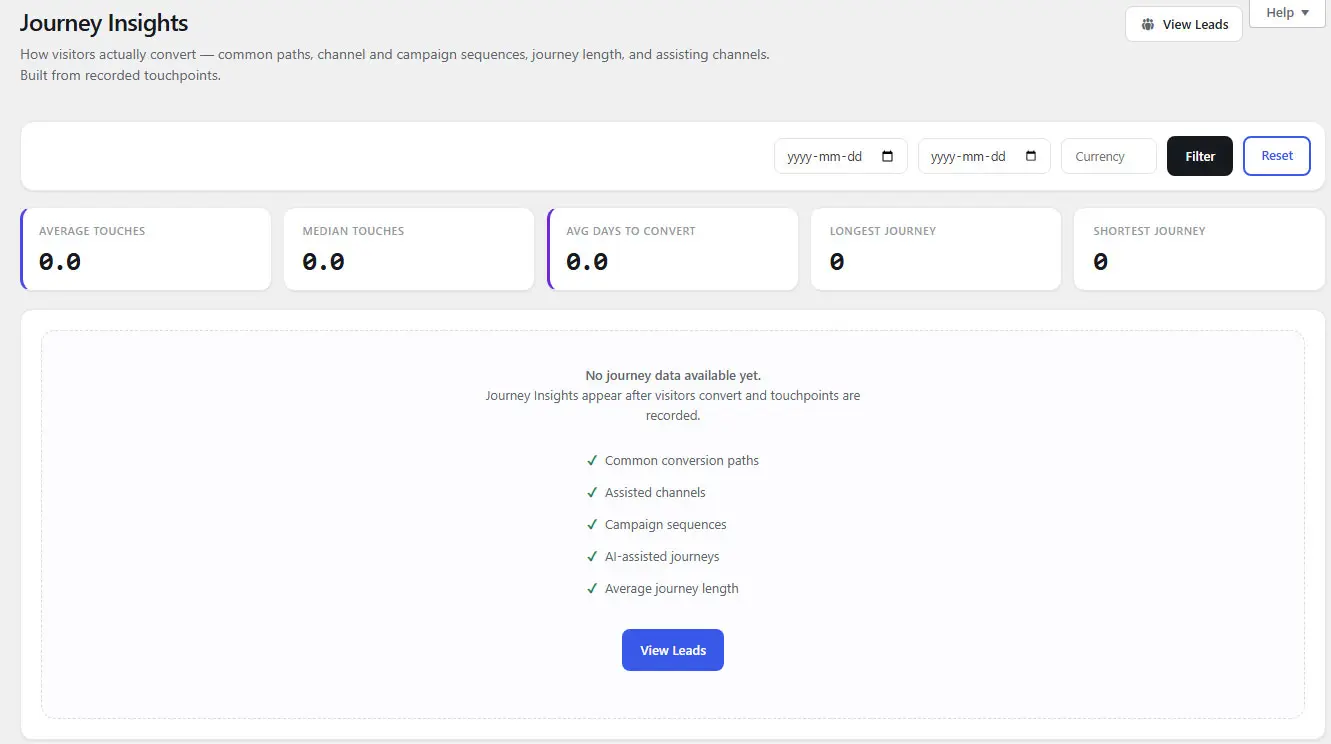
Common paths, channel sequences, campaign sequences
Common Paths shows the full channel-label sequence for each converting journey (e.g. "Organic Search → Email Marketing → Direct"). Channel Sequences summarizes only the first and last channel touched. Campaign Sequences does the equivalent at the campaign level.
Assisted channels
An "assisted" channel is one that appears on any touch before the final, converting touch in a journey — a presence signal only, with no weighting applied. A journey needs at least two touches for an assisted channel to exist by definition, since a single-touch journey's only touch is the conversion touch itself.
AI-assisted journeys
Tracks any touch anywhere in a journey — not only non-converting ones — where the channel is AI Referrals, grouped by the specific AI source (ChatGPT, Claude, etc.) rather than the channel label, so you can see which assistant actually influenced a deal.
Eligibility, interpretation, and limitations
A lead only appears in Journey Insights if it has a matching revenue record with a linked lead ID and at least one recorded touchpoint. Leads with zero touchpoints are dropped from every journey report — there's no partial journey to analyze without at least one touch. Touchpoints are built from session history at conversion time, one per session (not per pageview), and never fabricated or crossed between visitors.
Multi-touch models (First Touch, Last Touch, Linear, U-Shaped, Time Decay) are documented in full under Revenue Attribution & Attribution Models, since that's where they're applied to actual revenue figures.
13 Revenue
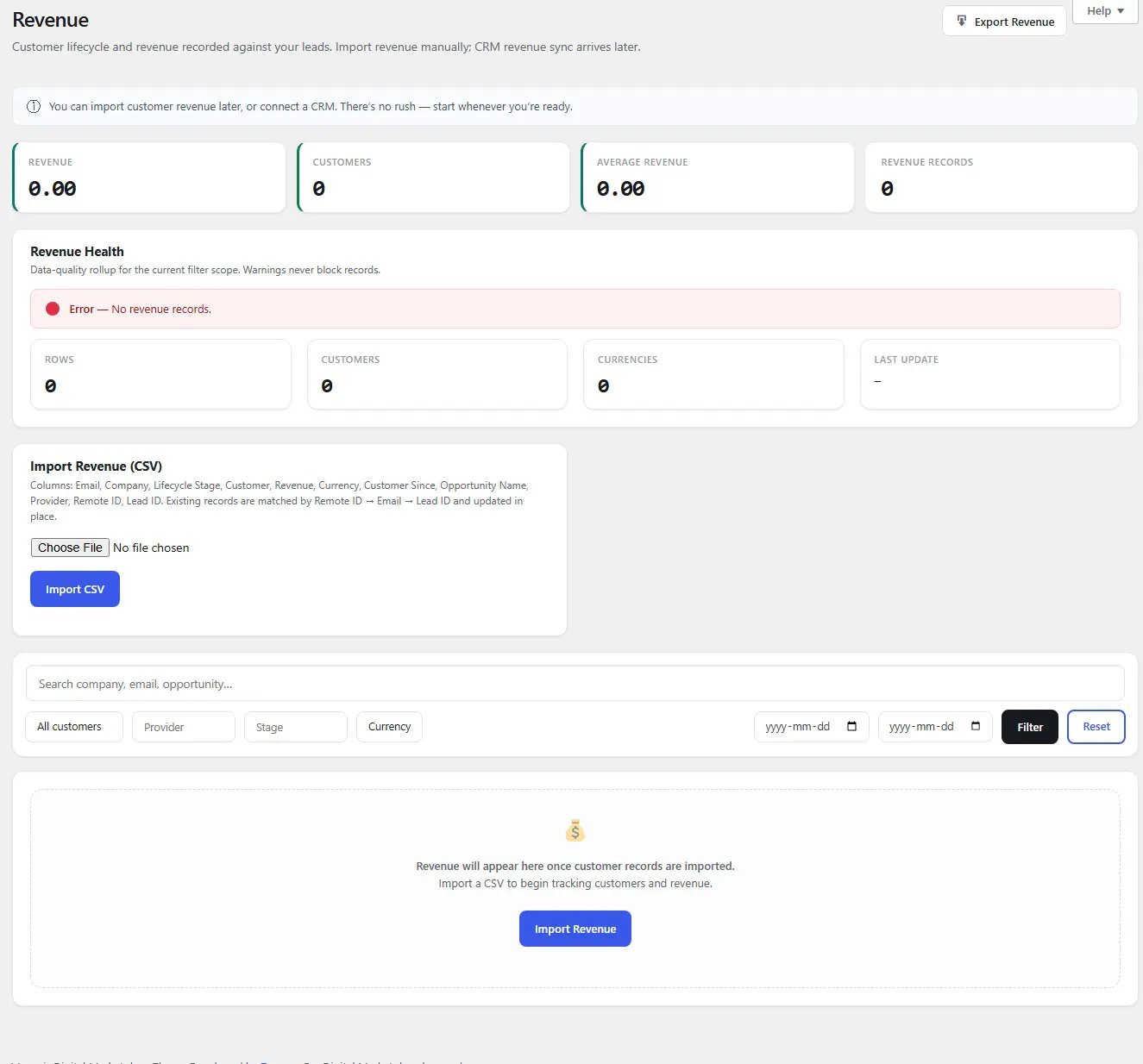
Revenue records and health
Each revenue row tracks a company/lead's provider, lifecycle stage, customer status, revenue amount and currency, customer-since date, and opportunity name. A Revenue Health card rolls this up into an overall healthy/warning/error state, flagging data-quality issues like missing currency, missing customer date, negative or zero revenue, and missing company or email — these flags are informational only and never block a record from being used in reporting.
CSV import schema and matching/update behavior
Exact columns recognized on import: Email, Company, Lifecycle Stage, Customer, Revenue, Currency, Customer Since, Opportunity Name, Provider, Remote ID, Lead ID. Header matching is alias-tolerant and case/spacing-insensitive (for example "Amount" or "Value" also map to Revenue, "Deal Name" or "Opportunity" map to Opportunity Name, "CRM ID," "Record ID," or "Contact ID" map to Remote ID).
| Column | Purpose |
|---|---|
| Match key (priority 2) and contact identity. | |
| Company | Company name, used alongside domain grouping. |
| Lifecycle Stage | Free-text stage label. |
| Customer | Boolean customer flag. |
| Revenue | Numeric amount, stored as submitted — no currency conversion. |
| Currency | Free-text currency code, normalized to uppercase letters only. |
| Customer Since | Date the record became a customer. |
| Opportunity Name | Deal/opportunity label. |
| Provider | Source system label (e.g. HubSpot, manual import). |
| Remote ID | Match key (priority 1) — the CRM's own record ID. |
| Lead ID | Match key (priority 3) — an AttribuLead conversion ID. |
Matching order: Remote ID → Email → Lead ID. If any of these matches an existing record, that record is updated in place rather than duplicated. Rows lacking all three identifiers are skipped and counted separately in the post-import summary (inserted / updated / skipped).
Lifecycle/customer fields, currencies, and duplicate handling
Verbatim product copy shown when more than one currency is present: "Revenue totals are not normalized... Values are summed numerically and should be interpreted carefully. No FX conversion is performed." If you operate in multiple currencies, keep that in mind before reading a blended revenue total at face value.
14 Revenue Attribution & Attribution Models
Revenue Attribution (single-touch)
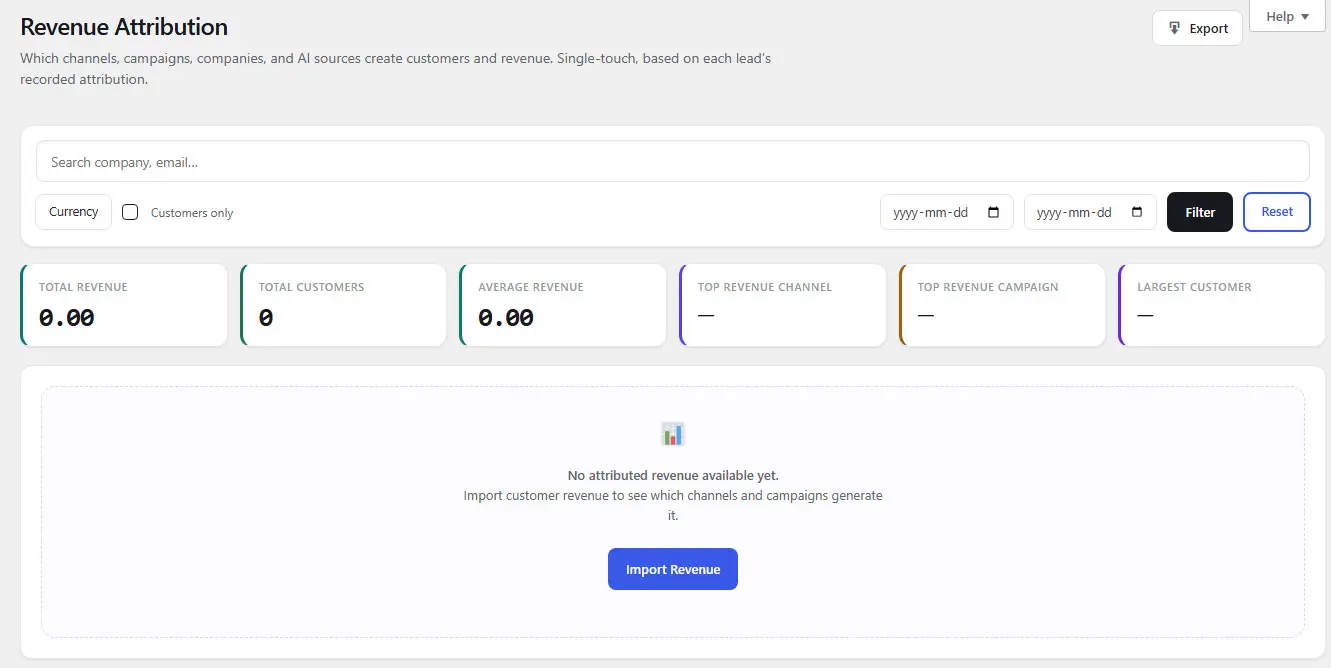
Revenue Attribution groups revenue by Lead Channel, campaign, company, and AI source, plus a top-customers view. It is explicitly single-touch: each lead's full recorded revenue is credited to that lead's own attribution, with no multi-touch weighting, LTV, or CAC calculation involved.
Customers-only and other filters
Standard filters apply across this report: date range, channel, and a customers-only toggle to exclude non-customer revenue rows from the view.
Attribution Models (multi-touch)
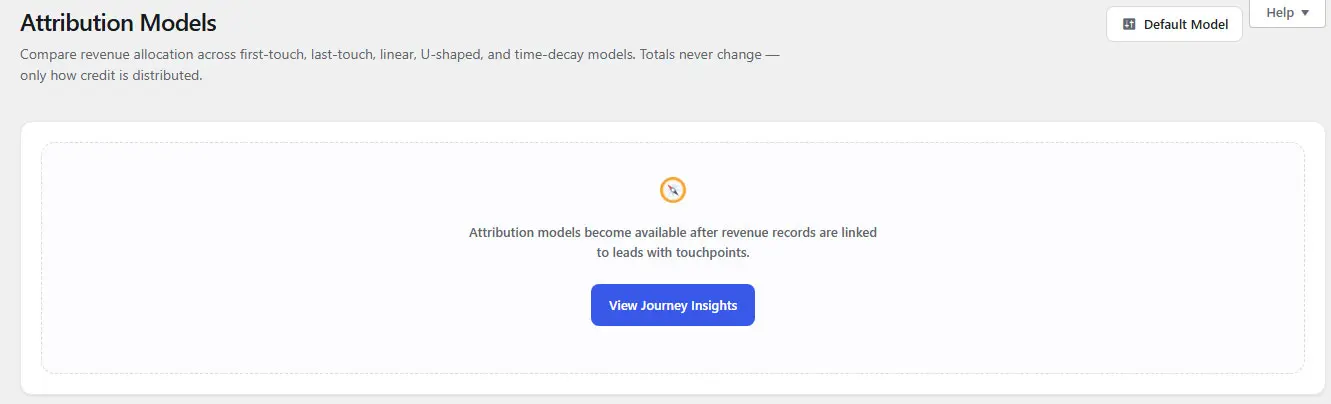
AttribuLead implements five multi-touch models:
| Model | Credit distribution |
|---|---|
| First Touch | 100% to the first touch in the journey. |
| Last Touch (default) | 100% to the final touch in the journey. |
| Linear | Equal credit split across every touch. |
| U-Shaped | 40% to the first touch, 40% to the last touch, remaining 20% split evenly across any middle touches (adjusted automatically for one- or two-touch journeys). |
| Time Decay | Exponential weighting with a 7-day half-life relative to the final touch — touches closer to conversion carry more credit. Falls back to an equal split if timestamps can't be used. |
Revenue conservation and model eligibility
Every model re-distributes exactly the same eligible revenue — no model ever creates or loses revenue in aggregate, only how it's divided across touches changes. "Eligible" revenue is any revenue row that has both a linked lead and at least one touchpoint; revenue rows missing either are excluded from every model equally and reported separately as an eligibility breakdown.
Model comparison and choosing a default model
The Model Comparison table shows per-channel and per-campaign revenue side by side across all five models, with a Totals row that is identical across models by construction — a useful sanity check that nothing was double-counted or dropped. Set your default model on Settings → Advanced; remember its scope is limited to this report and does not touch Dashboard KPIs, Lead Channel values, single-touch Revenue Attribution, or CRM sync.
15 CRM & Sync Center
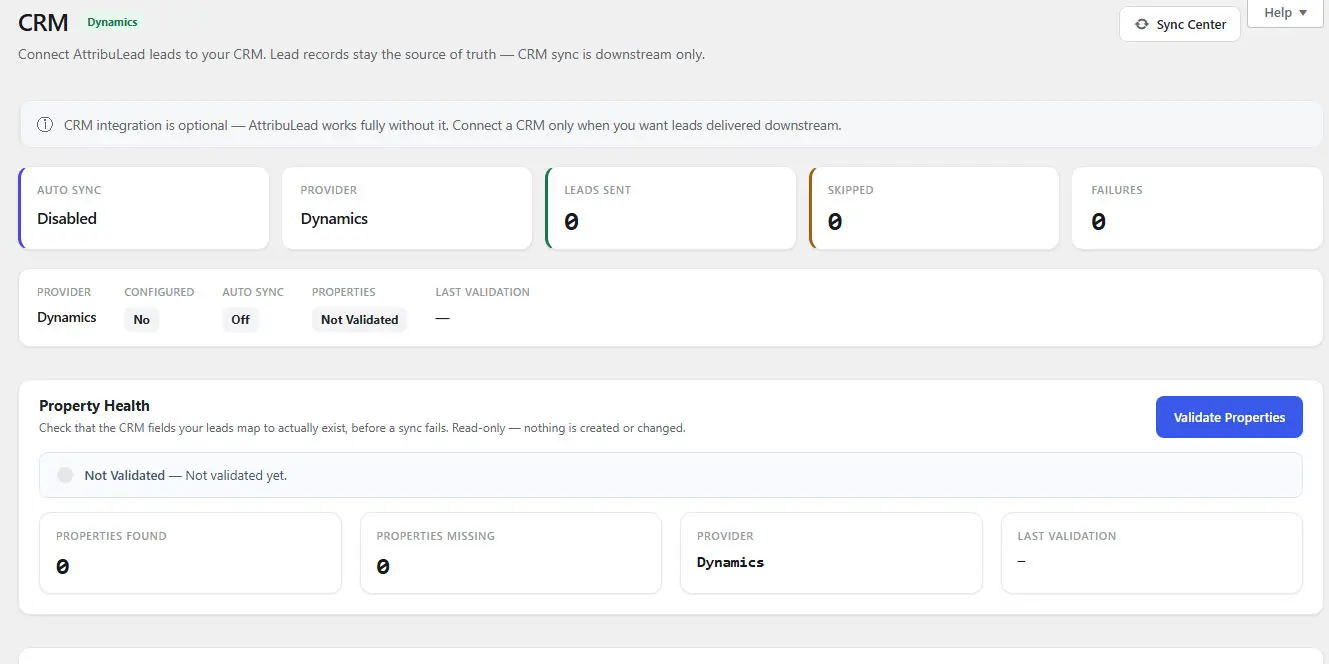
AttribuLead remains the authoritative record of every lead's attribution regardless of CRM configuration. CRM sync is entirely optional and strictly downstream — it pushes a neutral, mapped payload out to your CRM; it never reads attribution back in from the CRM.
Supported providers
| Provider | Status | Setup requirement |
|---|---|---|
| HubSpot | Native sync | Private App token (Bearer), with contacts read/write scopes. |
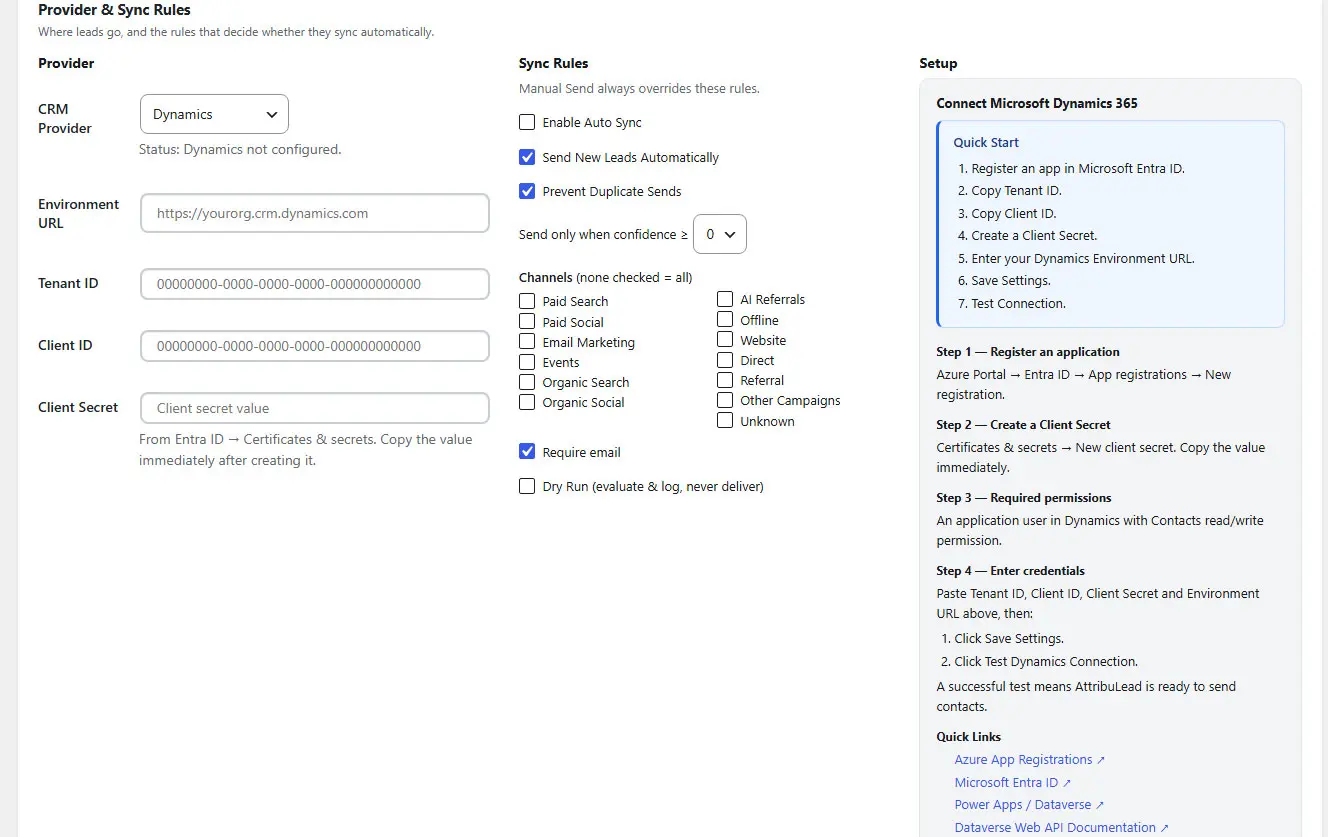
| Microsoft Dynamics 365 | Native sync | OAuth2 client-credentials: Tenant ID, Client ID, Client Secret, Environment URL — all four required. |
| Custom Webhook | Native sync | A single Webhook URL. Fixed POST/JSON transport. |
| Salesforce | Coming later | Not yet implemented as native sync — use the Custom Webhook provider today. |
| Pipedrive | Coming later | Not yet implemented as native sync — use the Custom Webhook provider today. |
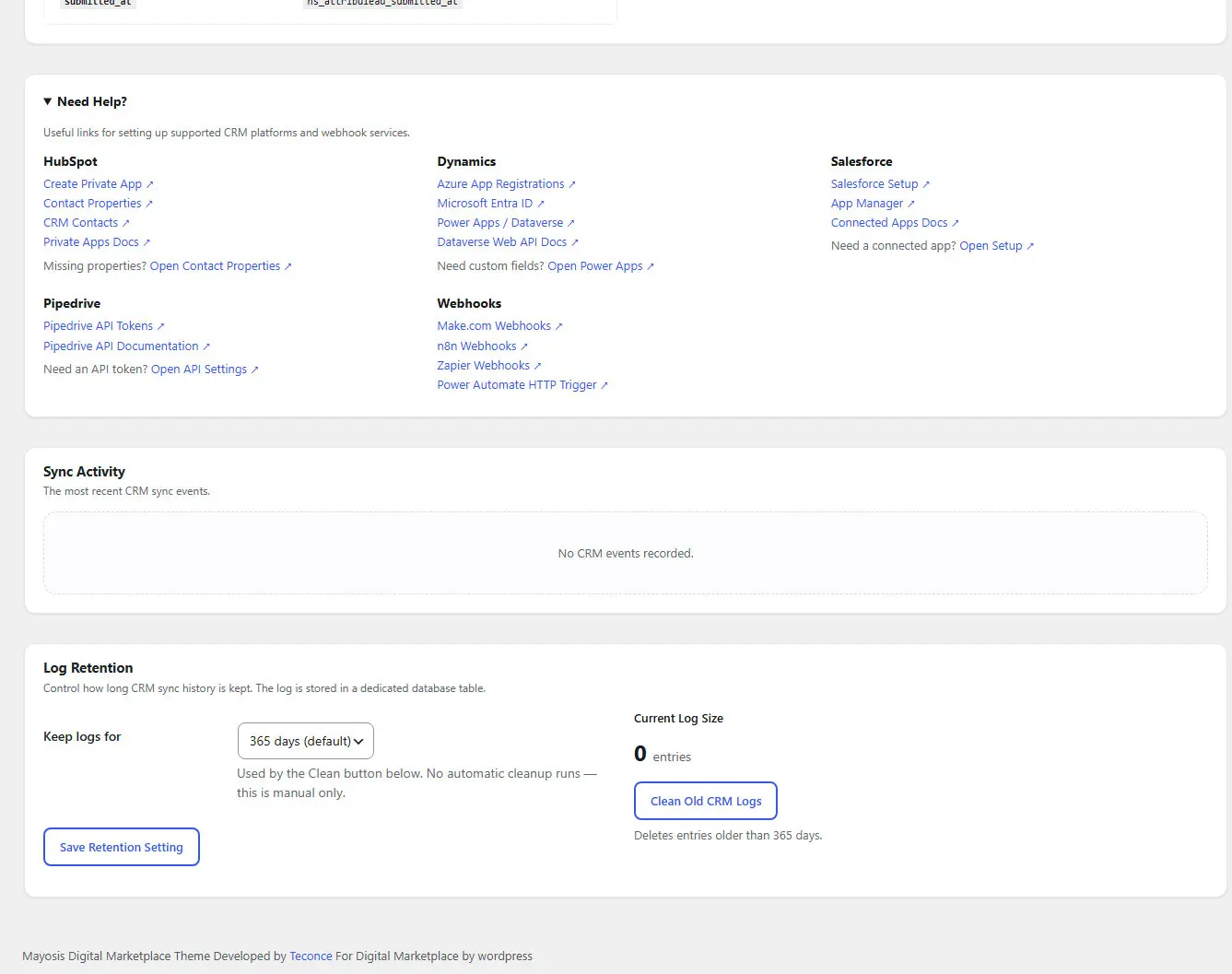
The CRM screen shows setup panels for Salesforce and Pipedrive, but native sync for both is explicitly labeled "coming in a later stage" in the product itself. If you need either today, connect it through the Custom Webhook provider instead.
Credentials and security
Never paste a live API token, client secret, or webhook URL into a support ticket, screenshot, or shared document. AttribuLead's own logs never store raw tokens, secrets, or full API response bodies — only status, message, and non-sensitive metadata.
Sync rules
| Rule | Default | Behavior |
|---|---|---|
| Enable Auto Sync | Off | Master switch for automatic sending. |
| Send New Leads Automatically | On | When Auto Sync is on, new leads are sent as they're created. |
| Prevent Duplicate Sends | On | Blocks re-sending a lead already marked sent to the current provider. |
| Confidence threshold | 0 (any) | Only sync leads at or above 0, 25, 50, 75, or 90 confidence. |
| Channels | None selected (= all channels) | Acts as an allow-list: when channels are checked, only leads in those Lead Channels sync. |
| Require email | On | Leads without an email are skipped from auto sync. |
| Dry Run | Off | Evaluates and logs every send attempt but never actually delivers a payload — useful for testing rules safely. |
Manual send versus automatic sync
A Send to CRM action is available on each lead's detail page and from the Sync Center. Manual sends override the confidence/channel/require-email rule gate above, but still respect duplicate protection (unless you explicitly Force Resend) and Dry Run mode, and always honor the CRM provider's own hard requirement for an email address where applicable — a missing email is reported as Skipped, never a silent send.
Field mappings, property validation, connection tests, payload preview
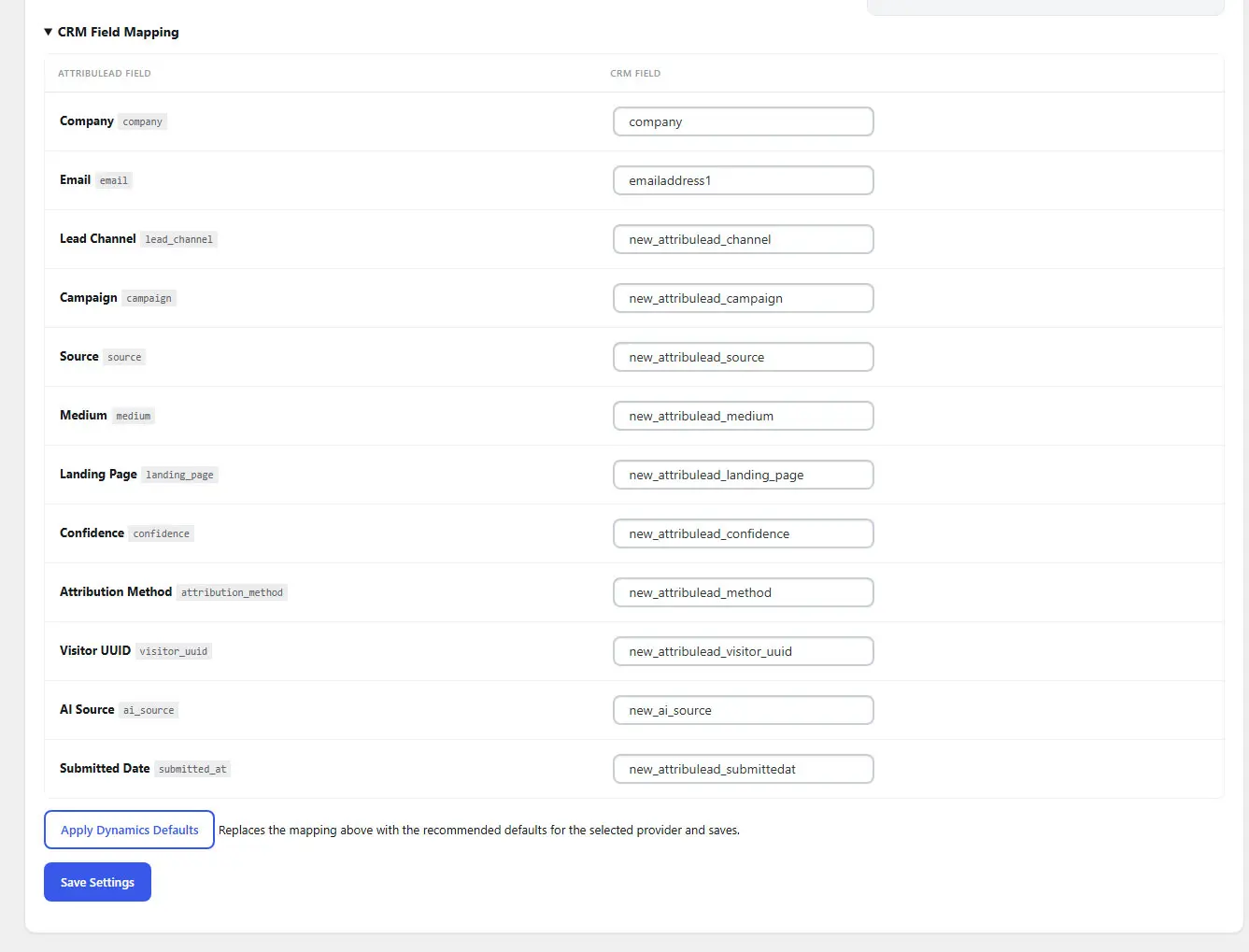
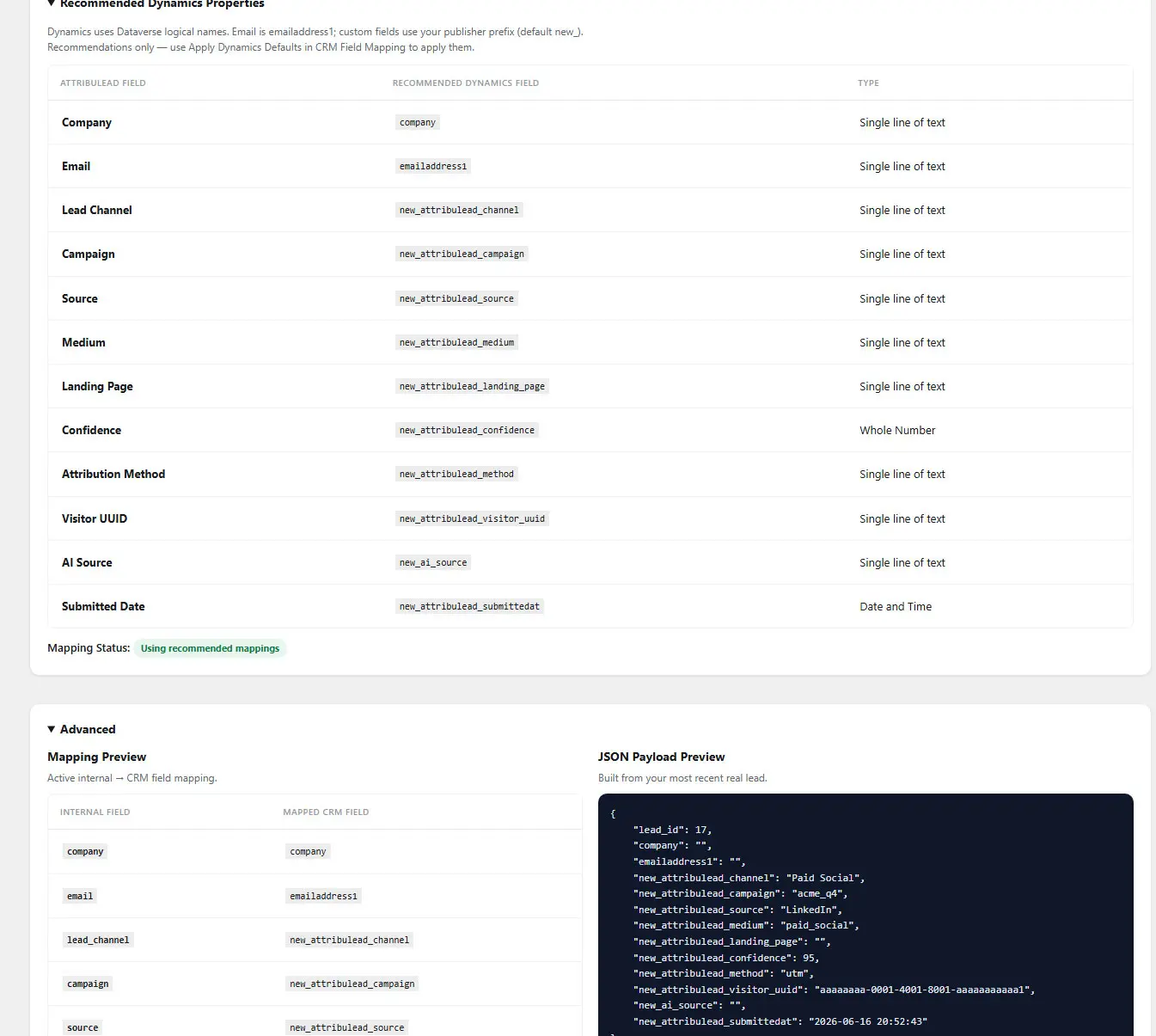
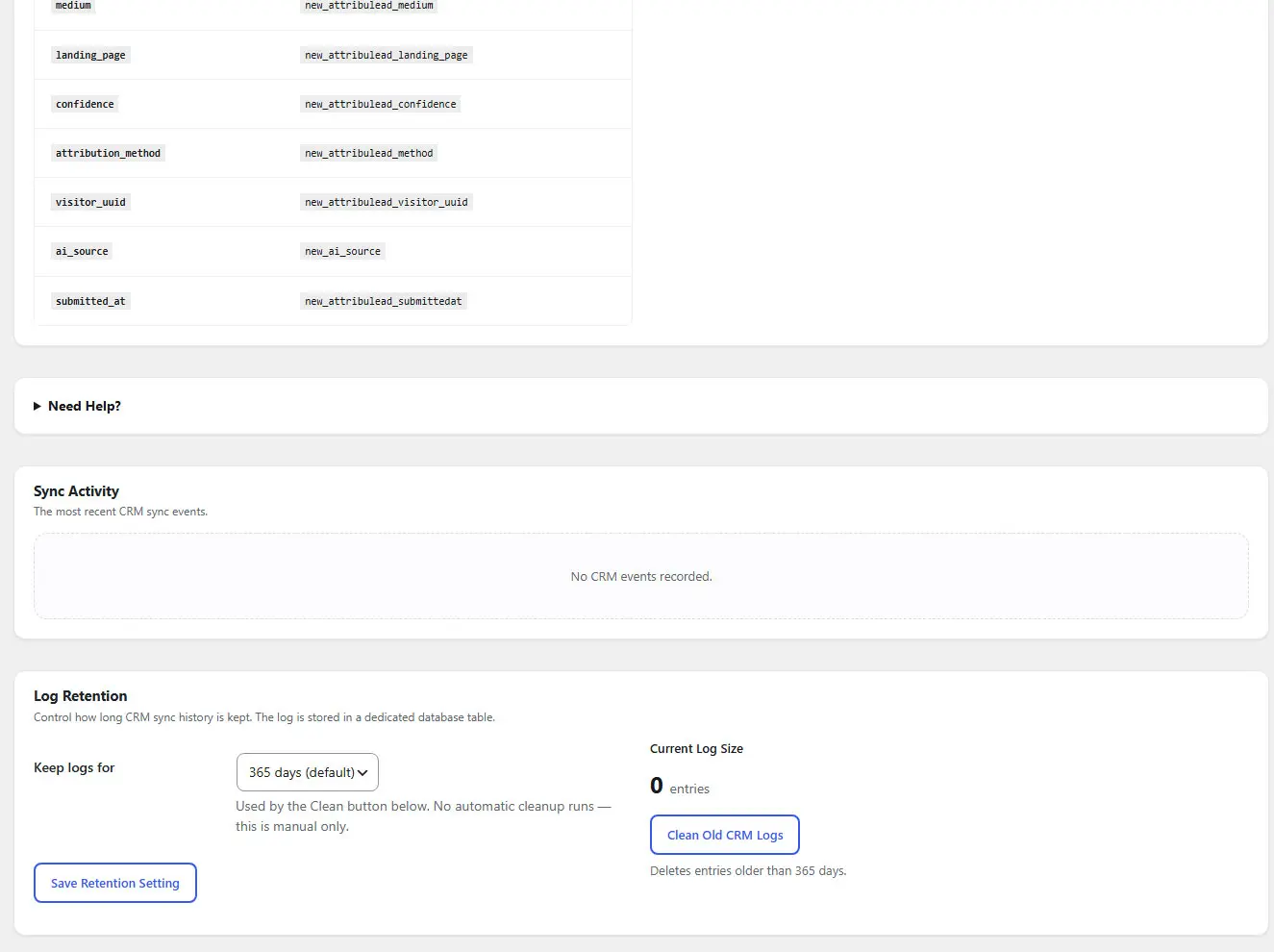
Twelve internal fields can be mapped per provider: company, email, lead channel, campaign, source, medium, landing page, confidence, attribution method, visitor UUID, AI source, and submitted-at. Sensible provider-specific defaults are pre-filled (for example, recommended HubSpot and Dynamics property names) and each provider keeps its own mapping, so switching providers never overwrites another's configuration.
Property validation (HubSpot and Dynamics only) makes a live, read-only API call to confirm every mapped field actually exists as a property in your CRM, reporting each as existing or missing and rolling up to an overall Healthy / Warning / Error / Unsupported status. For HubSpot specifically, missing properties can be created directly from this screen with one click per field.
An Advanced panel on the CRM screen shows a live Mapping Preview (internal field → CRM field) and a sample JSON Payload Preview built from your most recent real lead, so you can confirm exactly what will be sent before enabling Auto Sync.
HubSpot
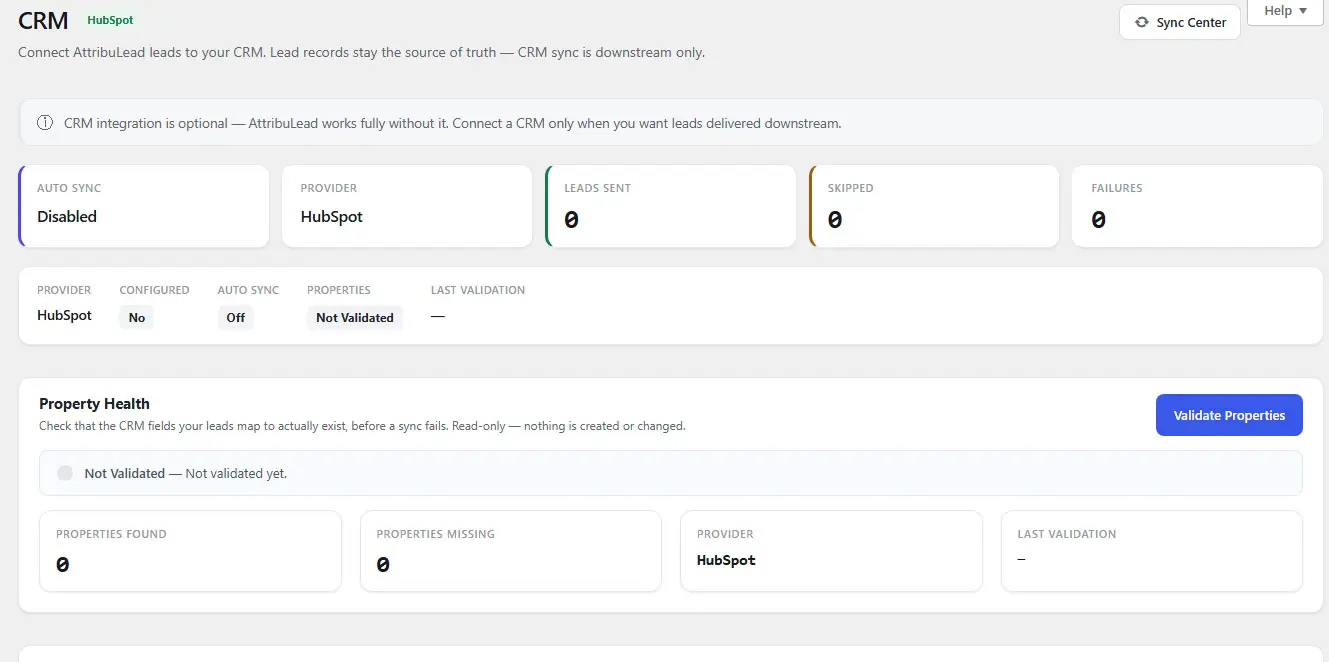
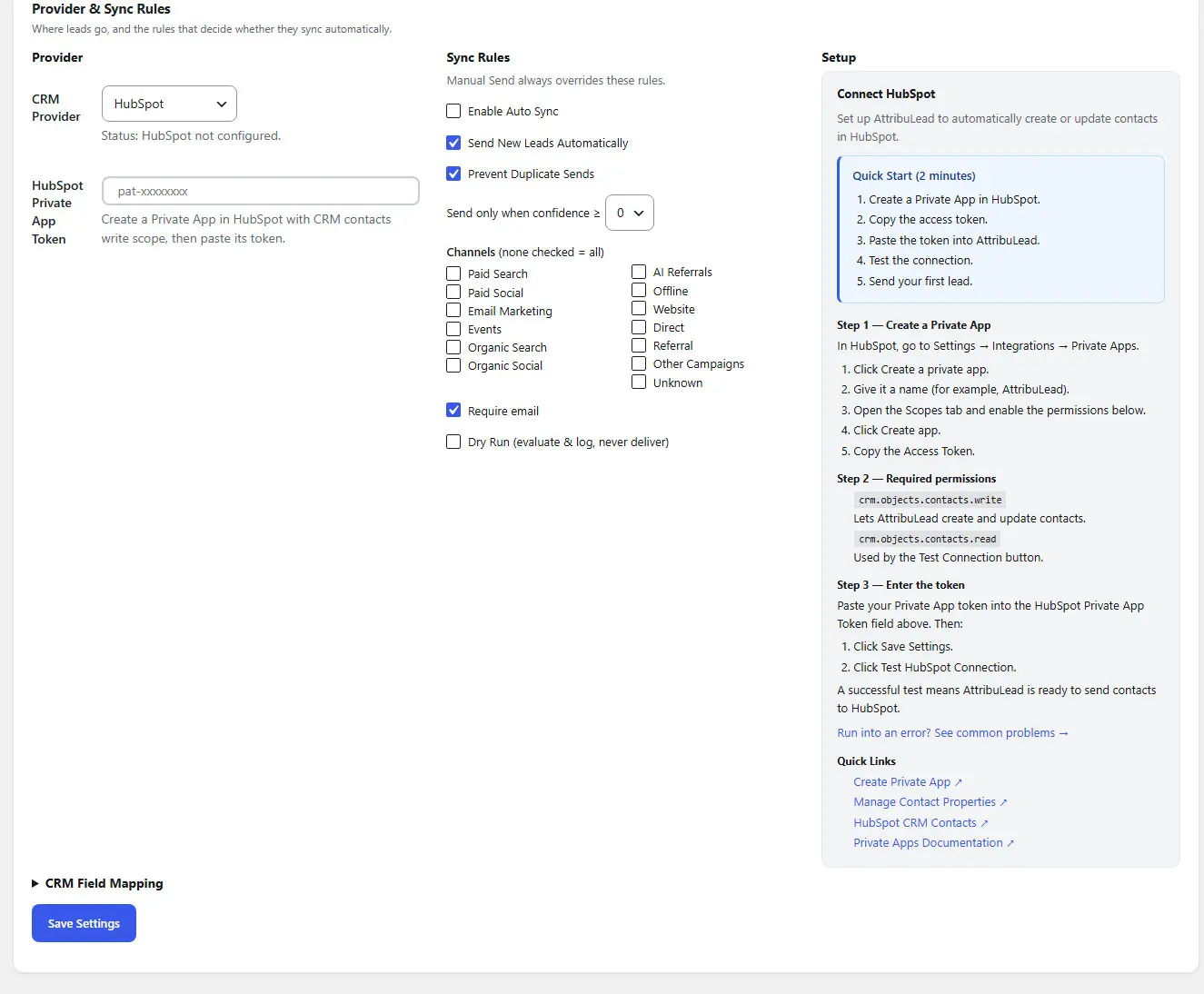
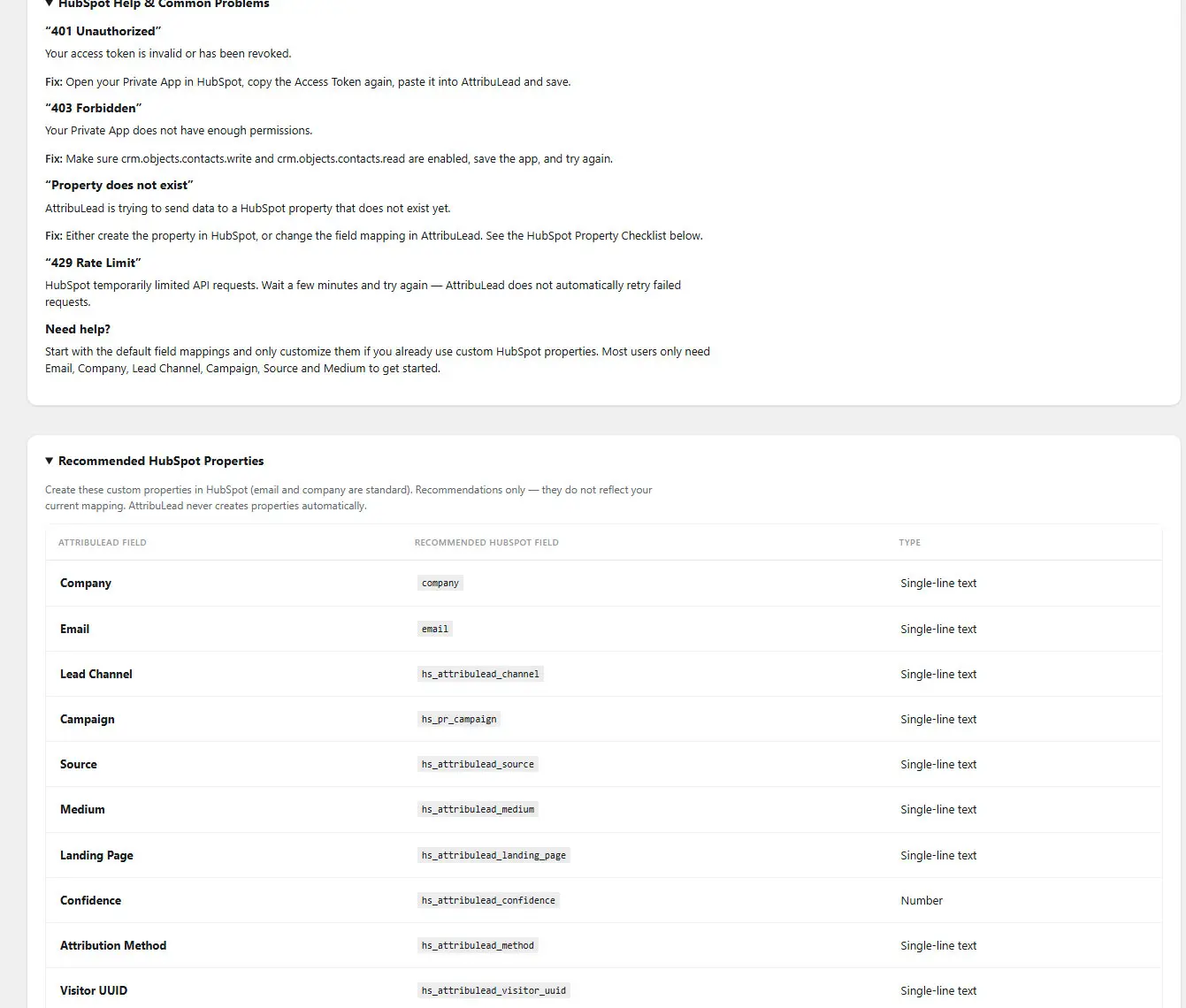
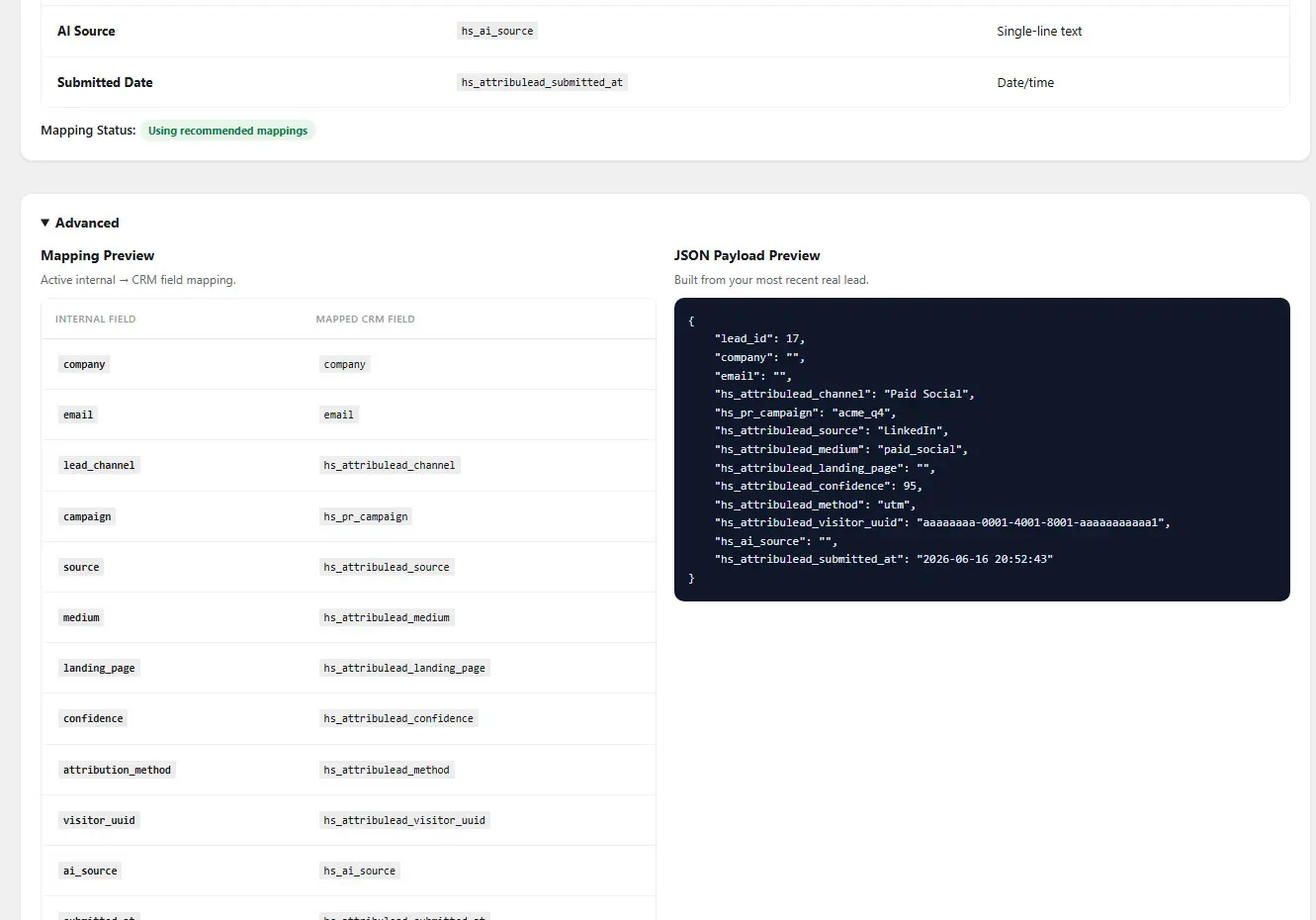
- Create a Private App in HubSpot with
crm.objects.contacts.writeandcrm.objects.contacts.readscopes, and copy its token. - Select HubSpot as the provider on the CRM screen and paste the token.
- Run Property Validation to confirm your mapped fields exist in HubSpot, creating any missing properties with one click if needed.
- Review the Mapping Preview and Payload Preview before enabling Auto Sync.
- Set your sync rules (confidence threshold, channels, require email, Dry Run) and enable Auto Sync when ready.
Common HubSpot errors
| Condition | Meaning / fix |
|---|---|
| 401 | Authentication failed — check your Private App token. |
| 403 | Access denied — confirm the Private App has the contacts write scope. |
| 400 | One or more mapped properties don't exist in HubSpot — confirm those fields, or run Property Validation. |
| 409 | Conflict reported by HubSpot (a duplicate-property response during creation is treated as success, not an error). |
| 429 | Rate limit reached — retry later. |
| ≥500 | HubSpot server error — retry later. |
Microsoft Dynamics 365
- Register an app in Microsoft Entra ID with API permissions against your Dynamics/Dataverse environment, and generate a client secret.
- Gather four values: Tenant ID, Client ID, Client Secret, and your Environment URL — all four are required before AttribuLead considers the connection configured.
- Select Dynamics as the provider and enter the four credentials.
- Confirm mapped fields use Dataverse logical names (e.g.
emailaddress1for email) — Property Validation will flag any that don't exist. - Review the Payload Preview, set sync rules, and enable Auto Sync.
Common Dynamics errors
| Condition | Meaning / fix |
|---|---|
| 401 | Invalid credentials — recheck Tenant ID, Client ID, and Client Secret. |
| 403 | Insufficient permissions — grant the app user read/write access to Contacts. |
| 404 | Invalid Environment URL. |
| 400 | One or more mapped fields don't exist — confirm the Dataverse logical names. |
| 429 | Rate limit reached — retry later. |
| ≥500 | Dynamics server error — retry later. |
| Token request timeout | Unable to reach Dynamics to obtain an access token — check connectivity and the Environment URL. |
Salesforce, Pipedrive & Custom Webhook
Since native Salesforce and Pipedrive sync are not yet implemented, connect either one today through the Custom Webhook provider and your CRM's own inbound-webhook or Zapier/Make-style automation. Configure a single Webhook URL; AttribuLead sends a fixed JSON POST containing the lead ID and the same twelve mapped internal fields used by every other provider. A separate, non-lead test payload (a simple {"test": true, ...} body) is available to confirm connectivity before relying on it for real leads.
The webhook transport has no authentication concept of its own — secure it at the receiving end (a secret query parameter, a shared header your automation checks, or an allow-listed endpoint), since AttribuLead only reports generic HTTP status errors for this provider, not the richer auth/permission messages available for HubSpot and Dynamics.
Sync Center
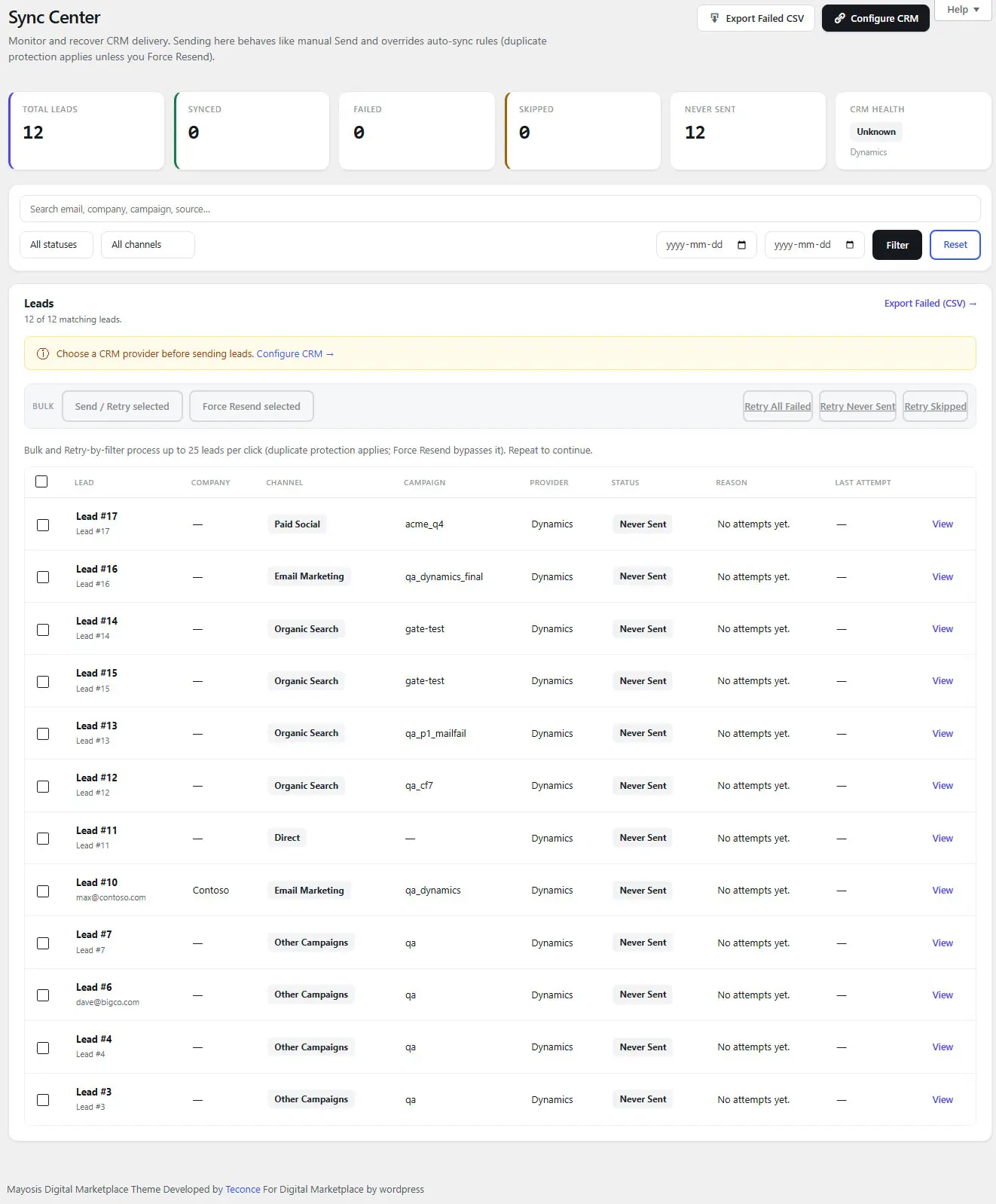
Sync Center gives you delivery totals (Synced, Failed, Skipped, Never Sent), a full per-lead sync-status table, and bulk actions: Send/Retry for a batch of up to 25 leads at a time, Force Resend (bypasses duplicate protection), and Retry by Filter (targeting failed, never-sent, or skipped leads specifically). It also detects leads that were previously sent to a CRM provider you've since switched away from, and offers a one-click "Force Resend All" to bring them in line with your current provider.
Sending from Sync Center behaves like a manual send: it overrides the automatic sync rule gate, but duplicate protection still applies unless you explicitly Force Resend.
Sync activity, failures, retries, and log retention
Every send attempt — success, failure, skip, "already sent," or dry run — is logged with a timestamp, provider, status, and message. Property validation and property creation events are logged separately for audit purposes. Retrying a failed send re-runs the same send path; there is no separate automatic retry schedule — retries are administrator-initiated from Sync Center.
Log retention is configurable at 90, 180, or 365 days, or Forever. There is no automatic cleanup cron — logs older than the threshold are only removed when you click "Clean Old CRM Logs," and that button is disabled entirely when retention is set to Forever.
16 Export Center
Shared filters
One filter bar applies to every export button on the page: date range preset or custom From/To, Channel, "Converted only," and "AI only."
Core exports
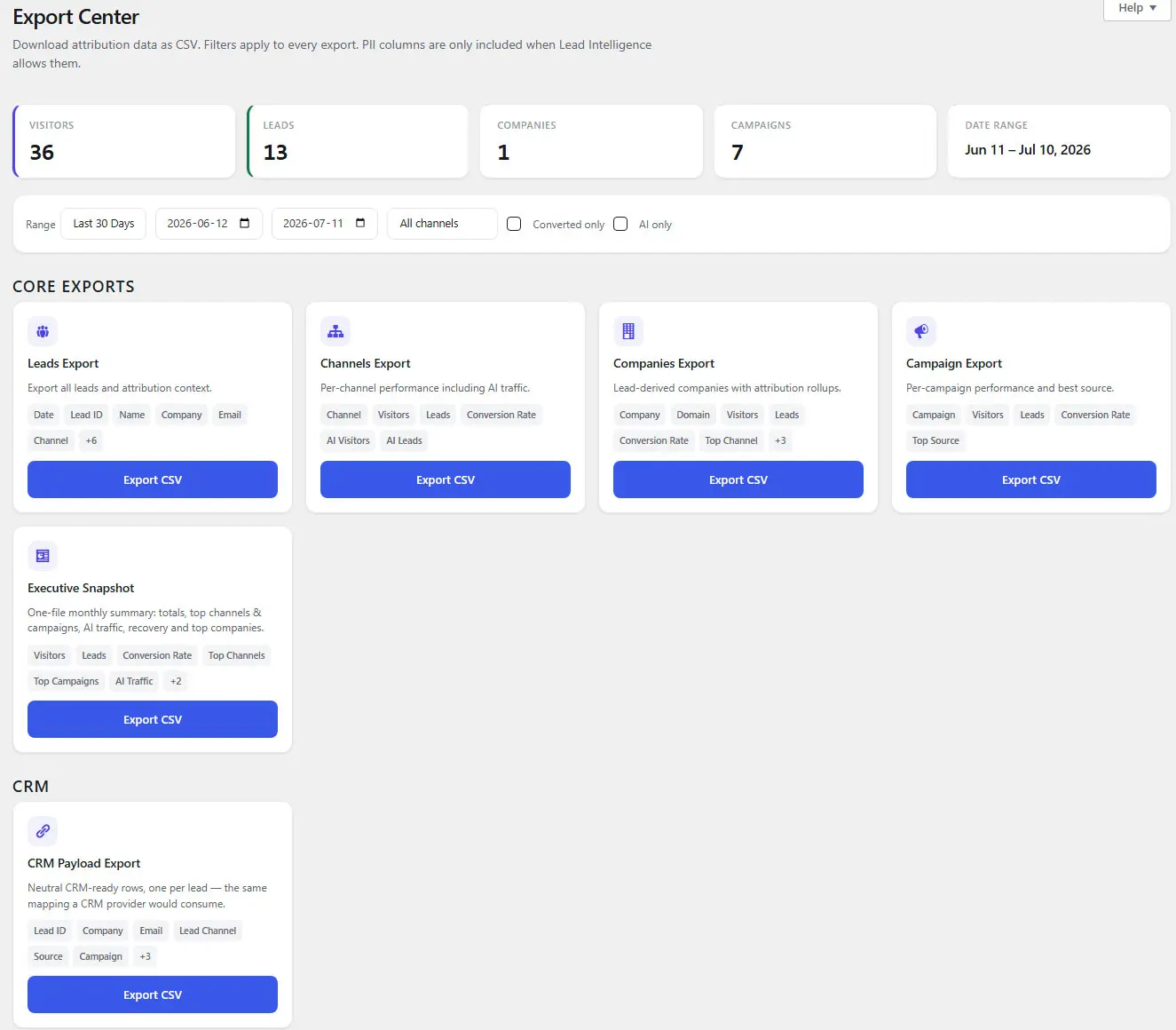
Always-available exports: Leads, Channels, Companies, Campaigns, and an Executive Snapshot summary. Pro unlocks the rest; locked cards remain visible with an upgrade prompt rather than disappearing.
CRM payload export
A dedicated CRM Payload export produces neutral, CRM-ready rows — one per lead, using the same field mapping a live CRM sync would send — useful for a manual import or a one-time migration without configuring a live sync.
Revenue and multi-touch exports
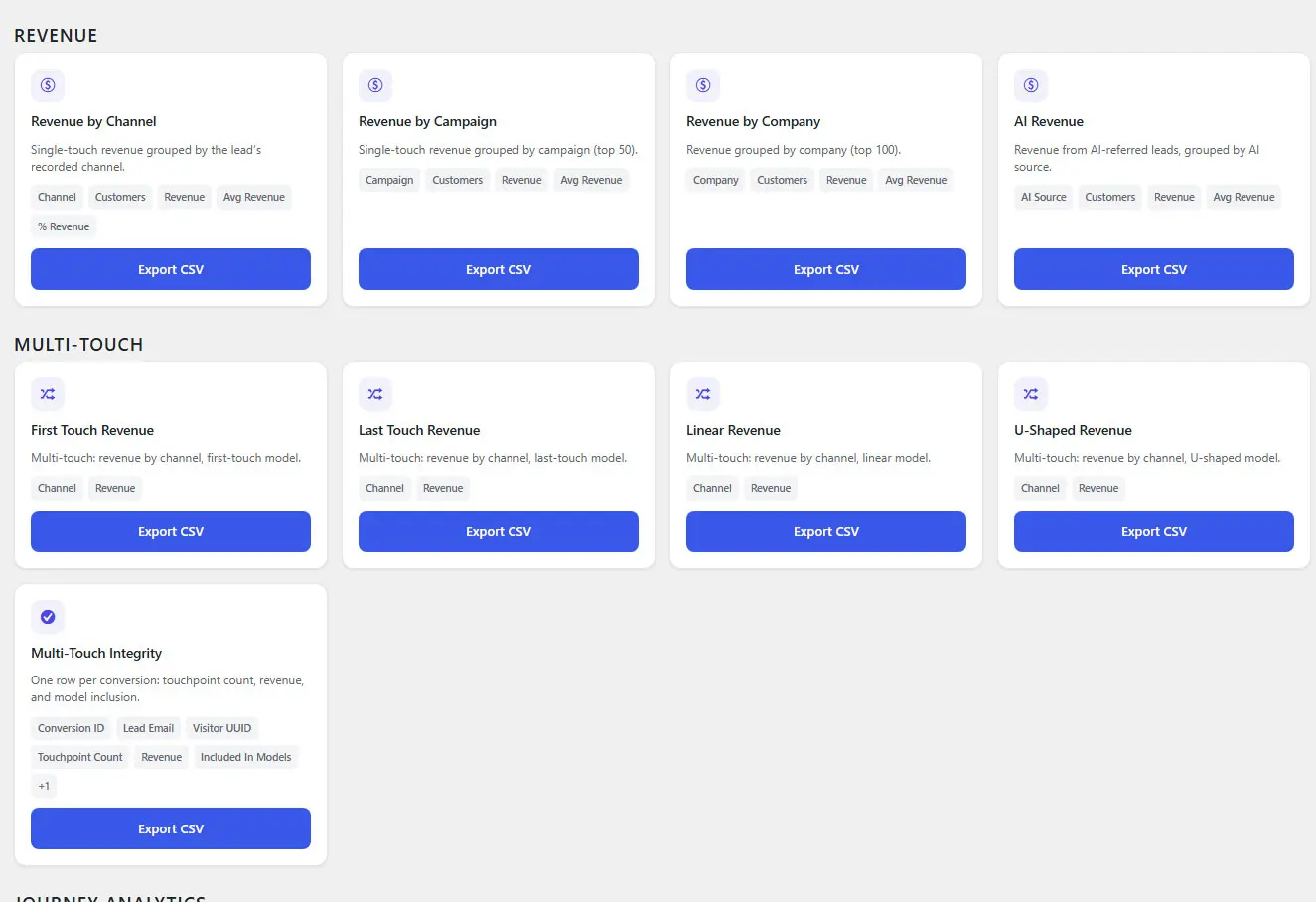
Revenue exports break down by channel, campaign, company, and AI source. Multi-touch exports cover First Touch, Last Touch, Linear, and U-Shaped allocations, plus a Multi-Touch Integrity export for auditing eligibility and conservation.
The Attribution Models report on-screen compares five models including Time Decay, but there is currently no dedicated Time Decay CSV export — export the on-screen comparison manually if you need that specific model's numbers outside the app.
Journey exports and download history
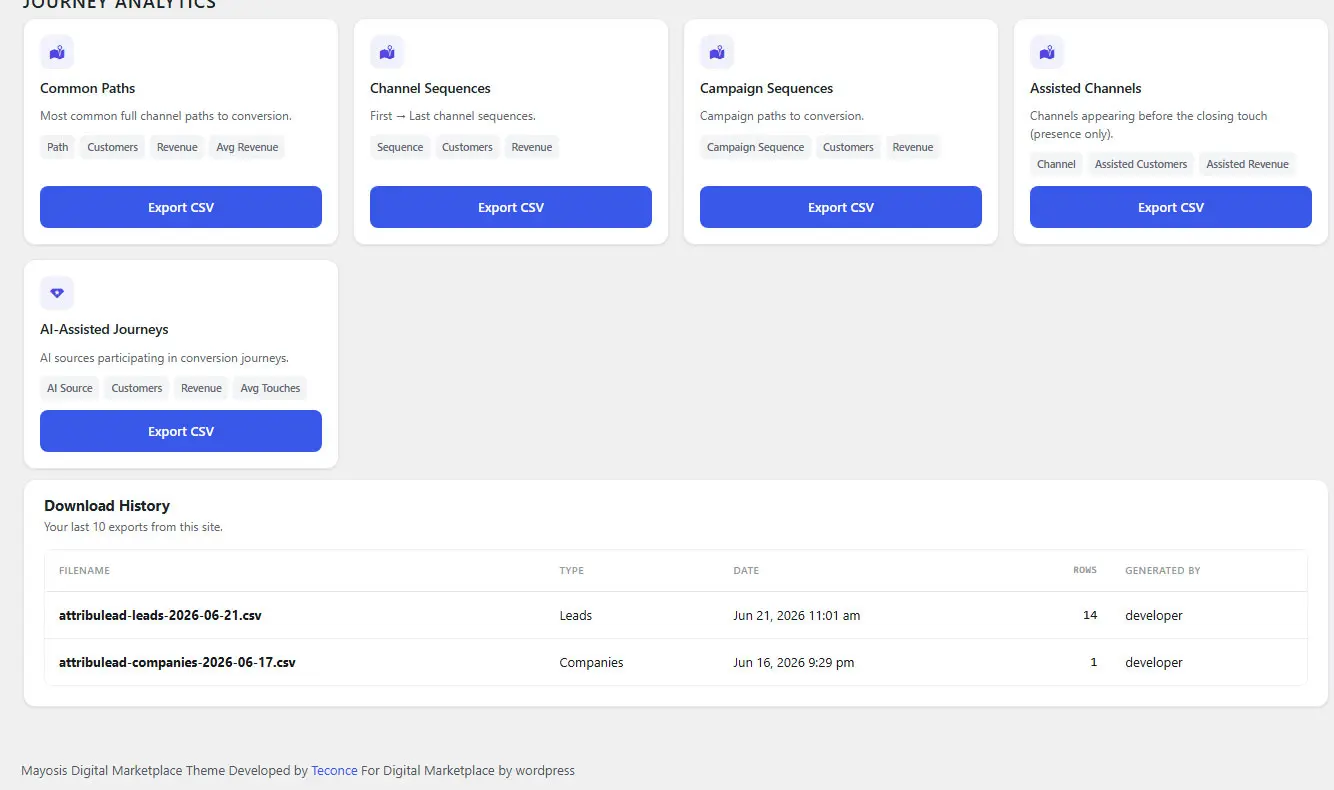
PII inclusion rules
There is no separate export-level PII toggle. Every export automatically inherits the same Lead Intelligence gating used everywhere else in the product: name, email, and company columns are only included in an export when your current Lead Data Storage setting allows them.
17 Advanced Tools
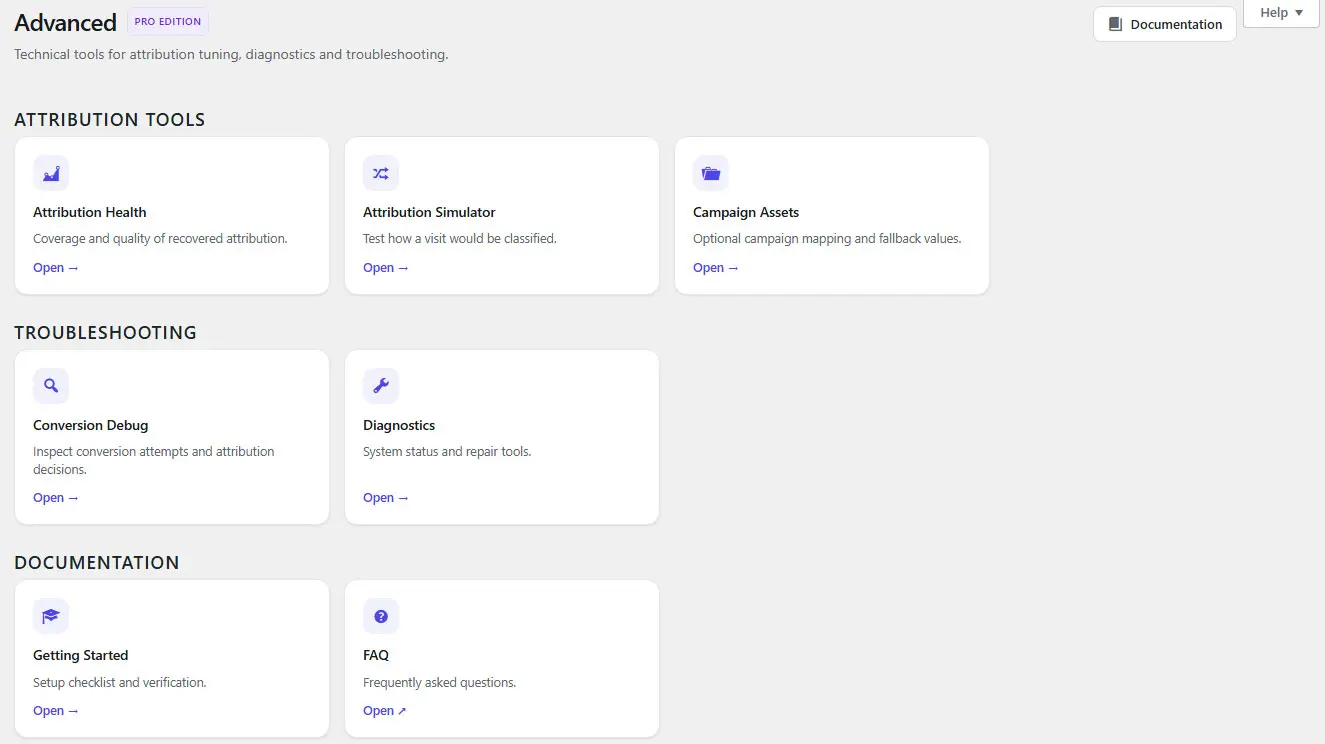
Attribution Health Read-only
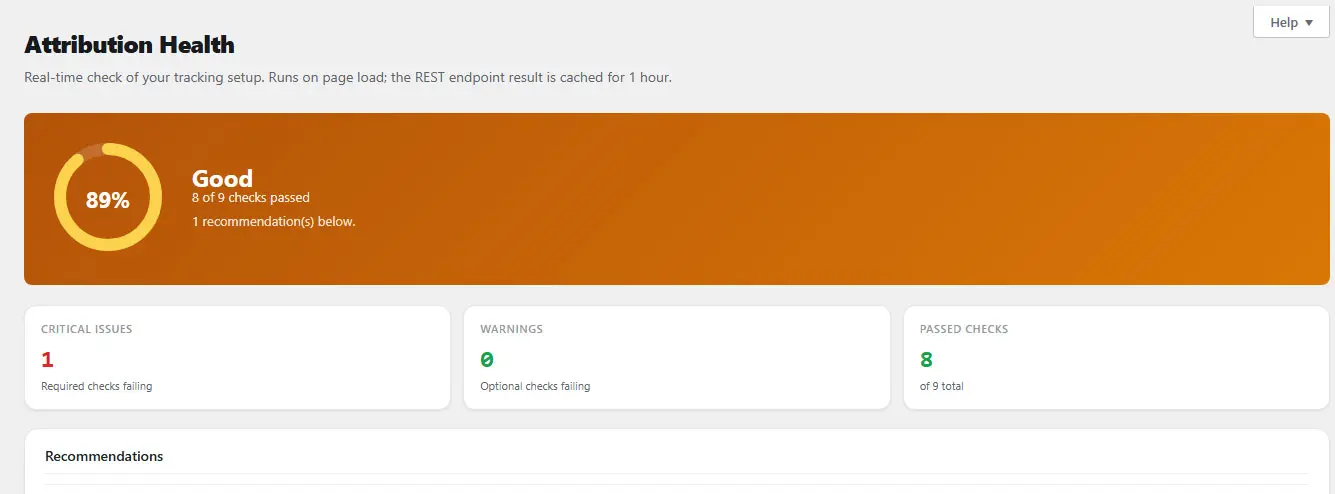
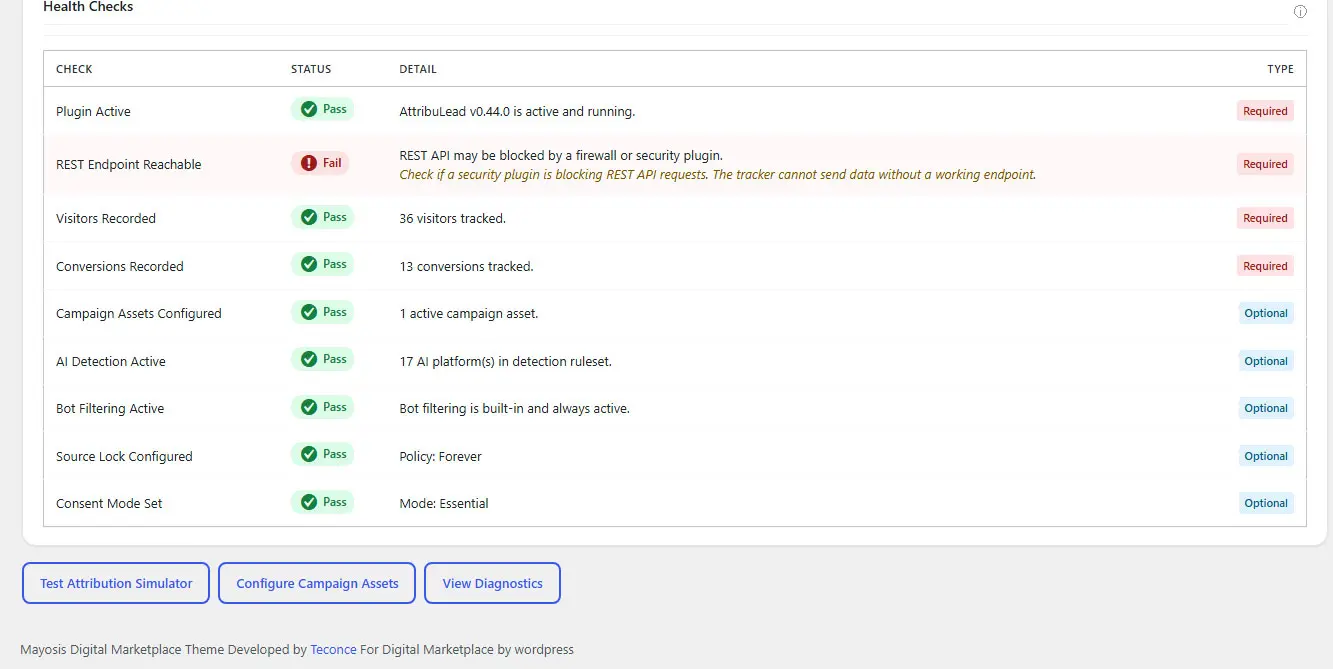
Nine automatic checks: plugin active, REST endpoint reachable (a live check, cached for one hour), visitors recorded, conversions recorded, Campaign Assets configured, AI detection active, bot filtering active, Source Lock configured (fails if set to Always Overwrite), and consent mode set (fails if Strict). The overall score bands as Excellent, Good, or Needs Attention. This screen never modifies data.
Attribution Simulator Read-only
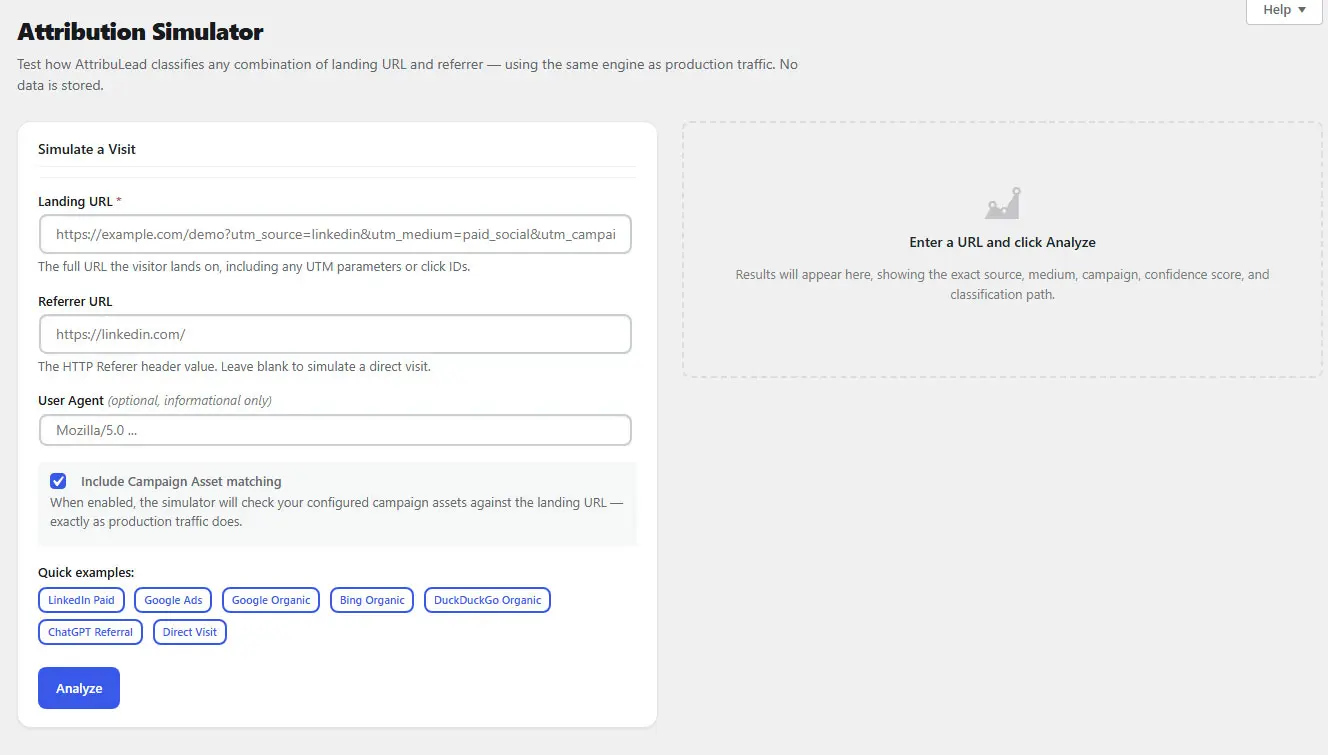
Enter a landing URL and a referrer (and optionally a Campaign Asset toggle) to see exactly how AttribuLead would classify that visit, including the step-by-step reasoning path. User agent is accepted for reference only and does not influence classification. Nothing entered here is saved.
Campaign Assets
See the dedicated Campaign Assets section.
Diagnostics
Primarily a read-only system-information and QA report intended for troubleshooting and support requests — export it as JSON when reporting an issue. It also exposes two actions that do write data: Repair Now, which safely re-runs the database schema check (adds anything missing, never drops existing data, and is safe to run repeatedly), and Rebuild Touchpoints, which regenerates multi-touch touchpoint rows (rebuild-all or missing-only) without touching any other table.
Conversion Debug Writes data
Diagnoses whether form submissions are actually being recorded, without guesswork. The Send Test Conversion button inserts a real conversion for your most recently tracked visitor through the exact same code path a production form uses, tagged form_type = diagnostic_test so it's excluded from dashboards and reports by default. Re-running it for the same visitor within 30 minutes returns a duplicate notice instead of inserting again. Because it's a real database row, delete it manually from Leads if you don't want it lingering.
What these tools change versus what is read-only
| Tool | Behavior |
|---|---|
| Attribution Health | Read-only |
| Attribution Simulator | Read-only — no data stored |
| Diagnostics report | Read-only |
| Diagnostics — Repair Now | Writes: safely reconciles the database schema |
| Diagnostics — Rebuild Touchpoints | Writes: touchpoint rows only |
| Conversion Debug — Send Test Conversion | Writes: a real, tagged test conversion row |
18 Bot Filtering & Data Quality
Every incoming visit is checked against a large, maintained list of known bot, crawler, and automation signatures — major search-engine crawlers, social/link-preview bots, SEO and monitoring tools, and common HTTP/automation libraries and headless browsers — matched against the request's user agent. A completely empty user agent is also treated as a bot. Matches are blocked before they can pollute your visitor or lead data, and a lightweight, non-identifying record of the block (reason and timestamp only) is kept for transparency; no IP address or other visitor-identifying data is stored for a blocked bot request.
Additional data-quality safeguards run alongside bot filtering: duplicate-conversion prevention (a repeat submission from the same visitor, form, and page within 30 minutes is rejected rather than recorded again, with a running counter of duplicates prevented) and invalid-submission handling (a missing or malformed visitor identifier means no conversion is created at all).
19 Troubleshooting
No visitors recorded
Confirm Consent & Tracking Mode isn't set to Strict, and that Attribution Health's "REST Endpoint Reachable" check passes. If your host or a security plugin blocks REST API traffic, the tracker cannot report visits.
No leads recorded
Use Conversion Debug to send a test conversion and confirm the write path itself works. If that succeeds but real forms don't record, check that your form integration is active (Settings → Integrations) and that the visitor UUID hidden field is actually present and populated on the form at submit time.
Incorrect, Direct, or Unknown channel
Direct is expected for a genuine returning visitor with no new signal — check whether Source Lock (not a bug) is preserving an earlier known source instead. Unknown means no UTM, click ID, or recognized referrer was present and no Campaign Asset matched; use the Attribution Simulator with the actual landing URL and referrer to see exactly why.
Missing UTMs or click IDs
Confirm the outbound link itself carries the parameters — a redirect chain, link shortener, or the ad platform's own click-tracking wrapper can sometimes strip query parameters before your landing page loads.
Form capture failure
Confirm the relevant form plugin is active and that the hidden visitor-UUID field name in Settings matches what the form is actually posting. For Contact Form 7, remember only mail-sent or mail-failed submissions create a conversion — a validation-failed or spam-flagged submission never will.
Consent/cookie-banner conflict
If you're on Consent Aware mode and see no tracking at all, confirm your CMP is actually setting the al_consent=1 cookie AttribuLead checks for, rather than only its own internal consent state.
Caching/minification conflict
Exclude AttribuLead's front-end tracker and form scripts from JS combination/minification in your caching plugin if attribution stops working after a page-speed optimization change — combining or deferring incorrectly can prevent the hidden fields from populating before submit.
CRM connection, mapping, permission, duplicate, and rate-limit failures
Start with the CRM screen's Property Health panel and the specific HTTP-status guidance in CRM & Sync Center. Use Dry Run to isolate whether the rule gate or the actual API call is failing, and check Sync Center for the exact logged message on a specific lead.
Revenue import issues
Confirm your CSV header names are recognizable (see the alias list in Revenue) and that each row has at least one of Remote ID, Email, or Lead ID — rows without any of the three are silently skipped and counted in the import summary.
Empty journey or model reports
A lead needs both a linked revenue record and at least one recorded touchpoint to appear in Journey Insights or the Attribution Models comparison — import revenue first, and confirm touchpoints exist (rebuild them from Diagnostics if you suspect they're missing after a migration).
Cross-domain limitations
Attribution is tied to a first-party visitor identifier on the domain the tracker runs on; a visitor who moves between two separate domains (e.g. a marketing site and a separate app subdomain not sharing the identifier) will be treated as two distinct visitors unless you specifically pass attribution parameters across that boundary yourself.
Safe debug workflow
- Run Attribution Health first — it catches the most common configuration issues in under a minute.
- Use the Attribution Simulator to confirm classification logic for a specific URL/referrer pair before assuming a bug.
- Use Conversion Debug to isolate whether the issue is in tracking or in form capture.
- Check Diagnostics' exported JSON and share it with support rather than screenshots of raw data, especially if CRM credentials might be visible on screen.
20 FAQ
What is attribution, in AttribuLead's terms?
Does AttribuLead replace Google Analytics?
Does it require cookies?
Will it help with GDPR compliance?
Can I use it alongside a consent management platform (CMP)?
al_consent=1 cookie your CMP (or your own consent UI) sets is present.Will caching or minification break tracking?
Can I export leads and reports?
Does it integrate with HubSpot?
Does it integrate with Microsoft Dynamics?
Can it detect traffic from AI assistants like ChatGPT?
How does the confidence score work?
Can I delete a specific person's data?
What happens to my data if I uninstall the plugin?
Can AttribuLead identify a specific anonymous visitor?
How are Companies identified?
What CRMs can AttribuLead sync to natively today?
Will a lead be double-counted if they submit the same form twice?
What's the Attribution Simulator for?
Does AttribuLead guarantee perfect attribution?
How do I test that everything is working end to end?
21 Glossary
- Attribution Method
- How a source was identified:
click_id,utm,campaign_asset,ai_referral,referrer,source_lock, orunknown. - Campaign Asset
- A URL-pattern fallback rule mapping a known landing page to a source, medium, and campaign, used only when no UTM or recognized referrer is present.
- Confidence
- A 0–100 score reflecting how strong the signal behind an attribution decision was.
- Conversion
- A recorded form submission — the database event that becomes a Lead.
- Effective Source
- The business attribution value used for CRM and reporting, governed by Source Lock.
- First Touch
- A visitor's original, immutable source.
- Last Touch
- The most recently observed source signal, which can legitimately be Direct.
- Lead
- A conversion record created from a supported form submission.
- Lead Channel
- One of 13 normalized reporting categories every visitor and lead is classified into.
- Multi-Touch Attribution
- Distributing credit for a conversion across every recorded touch in a journey, using a model such as Linear or U-Shaped.
- Session
- A single visit, ending after 30 minutes of inactivity.
- Source Lock
- The policy governing whether and when a new touch is allowed to overwrite a visitor's known Effective Source.
- Touchpoint
- One session-level touch used in multi-touch journey analysis.
- Visitor
- A browser recognized by a first-party visitor identifier; can have many sessions and, eventually, a conversion.